Quick Answer
To create a transition video with PostAI Magic Reel, paste your listing URL from PropertyGuru, 99.co or EdgeProp into PostAI. Magic Reel auto-builds the storyboard, pre-selects the start frame for each scene, generates an AI-recommended end frame, then renders cinematic transitions with music, your agent branding and an AI voiceover. The whole process takes under five minutes per listing — about 95% faster than the manual ChatGPT + Kling + CapCut workflow.
What Magic Reel Does — And Why It Beats a Slideshow
A transition video is not a panning slideshow of listing photos. It is a short, cinematic reel where AI generates the motion between two image frames — the original listing photo on one end, and an AI-imagined version (post-renovation, with a lifestyle scene, or in a different mood) on the other. The result feels like film, not a property tour.
The same technique runs the high-end real-estate reels you have seen on Instagram. Until recently, producing one took a manual stack — ChatGPT to imagine the end frame, Kling or Runway to generate the motion clip, CapCut to compose music and captions — and about 95 minutes per video. Magic Reel is the same workflow automated end-to-end, inside a single guided UI.
This guide walks you through the entire Magic Reel flow, screen by screen, so you can ship your first reel today.
The 3-Step Magic Reel Workflow at a Glance
Before going deep, here is the full flow on one slide. Three named steps, total time under five minutes for a typical listing.
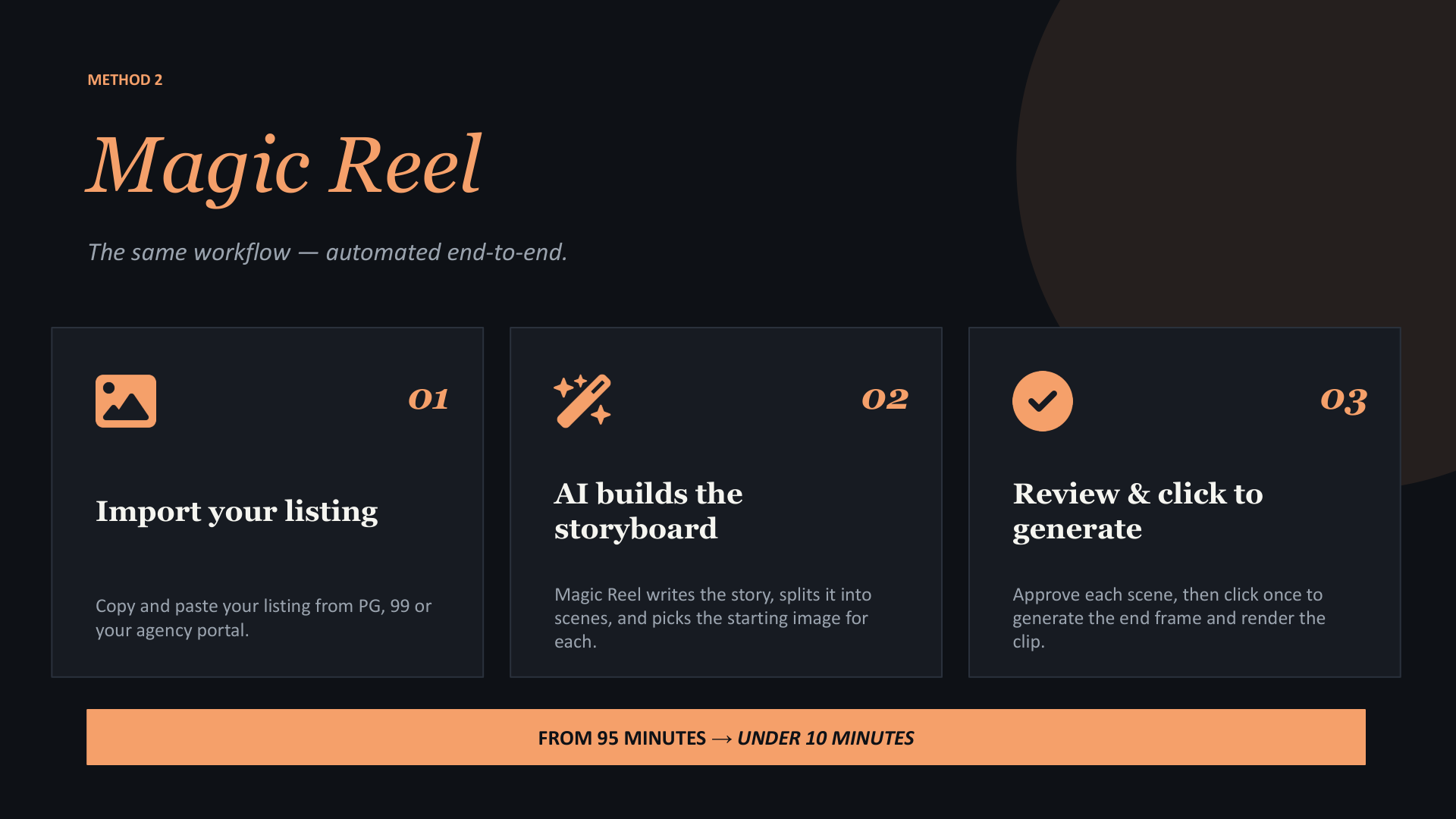
Most agents finish a reel between hitting "Import" and finishing their coffee. The depth-of-control sits behind every step — you can override every choice — but the defaults are tuned so the fast path produces a publishable reel without any tweaks.
Step 1 — Import Your Listing
Step 1 of 5Open PostAI, tap Create Video, and paste any listing URL from PropertyGuru, 99.co, EdgeProp or your in-house agency portal. You can also paste an URL from a Google Drive folder of listing photos if the listing has not been posted yet.
Magic Reel reads the listing and pulls in:
- All the listing photos in their original order
- The address, asking price, floor area, bedroom count and tenure
- The headline and the agent description
There is no manual upload step. If the listing is missing a key photo (kitchen, master bedroom, balcony), it is faster to add it on the portal first and re-import than to upload one-off images.
Step 2 — Review the Auto-Built Storyboard
Step 2 of 5Within a few seconds of import, Magic Reel hands you a complete storyboard. You will see the story direction (a paragraph of narrative AI has drafted from the listing), the chosen cover image with a tagline, and the listing split into named scenes — "Living Room View", "Kitchen with Service Yard", "Corridor", "Main Bedroom" and so on.
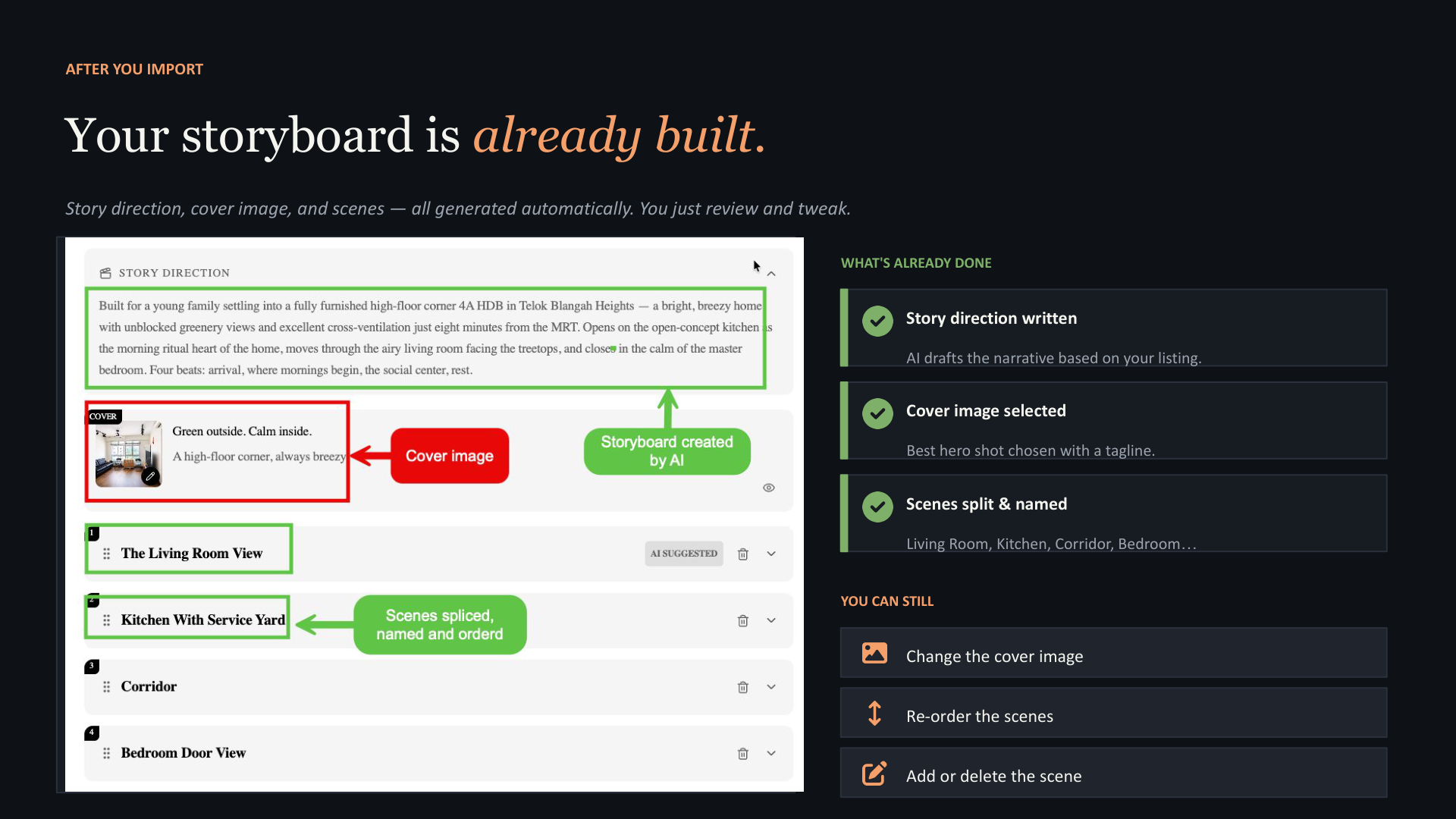
This is the most important review step. On the right-hand panel you can still:
- Change the cover image — swap the AI's pick for a different hero shot if you have a stronger one
- Re-order the scenes — drag to put the most compelling room first. The first 1.5 seconds carry the scroll
- Add or delete a scene — drop a weak room, or split a strong one (e.g. balcony day + balcony night)
Spend two minutes here. A storyboard tweak now saves a re-render later. The classic "day arc" sequence — Morning → Afternoon → Evening → Always (kids' study, balcony) — performs well for most family-oriented listings.
Step 3 — Inside Each Scene: Start Frame + End Frame
Step 3 of 5Open any scene and you will see the trick that makes AI video work: a start frame on the left (your listing photo, pre-selected) and an end frame on the right (an AI-recommended renovation or lifestyle variant of the same room). AI fills in the motion between the two frames to produce one cinematic clip.
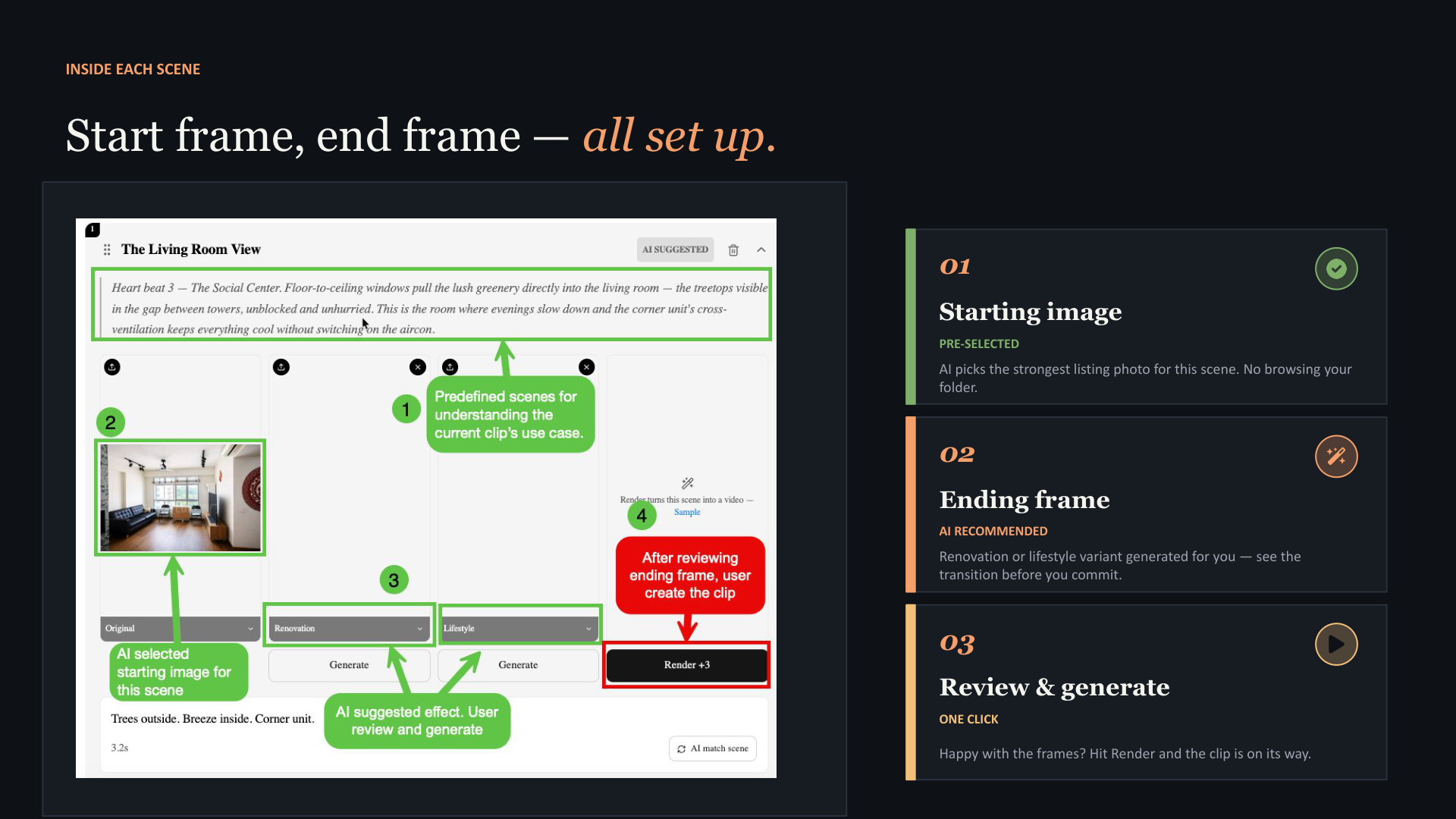
For each scene the work is already done. You only act if you want to:
- Replace the start frame — if a stronger listing photo exists for this room
- Regenerate the end frame — if the AI's chosen variant does not fit the story (too modern for a heritage shophouse, too sterile for a family home, etc.)
- Approve and move on — most scenes need no edits
Once you click Render, the clip is generated in roughly 1–2 minutes per scene. You can keep working — review the next scene, edit the voiceover line — while previous scenes render in the background.
Step 4 — Change the Effect (Optional, No Prompts Needed)
Step 4 of 5Don't like the AI's chosen end frame? You do not have to write a prompt. Open the effect picker and pick from five categories, each with multiple pre-built styles. Click confirm. Done.
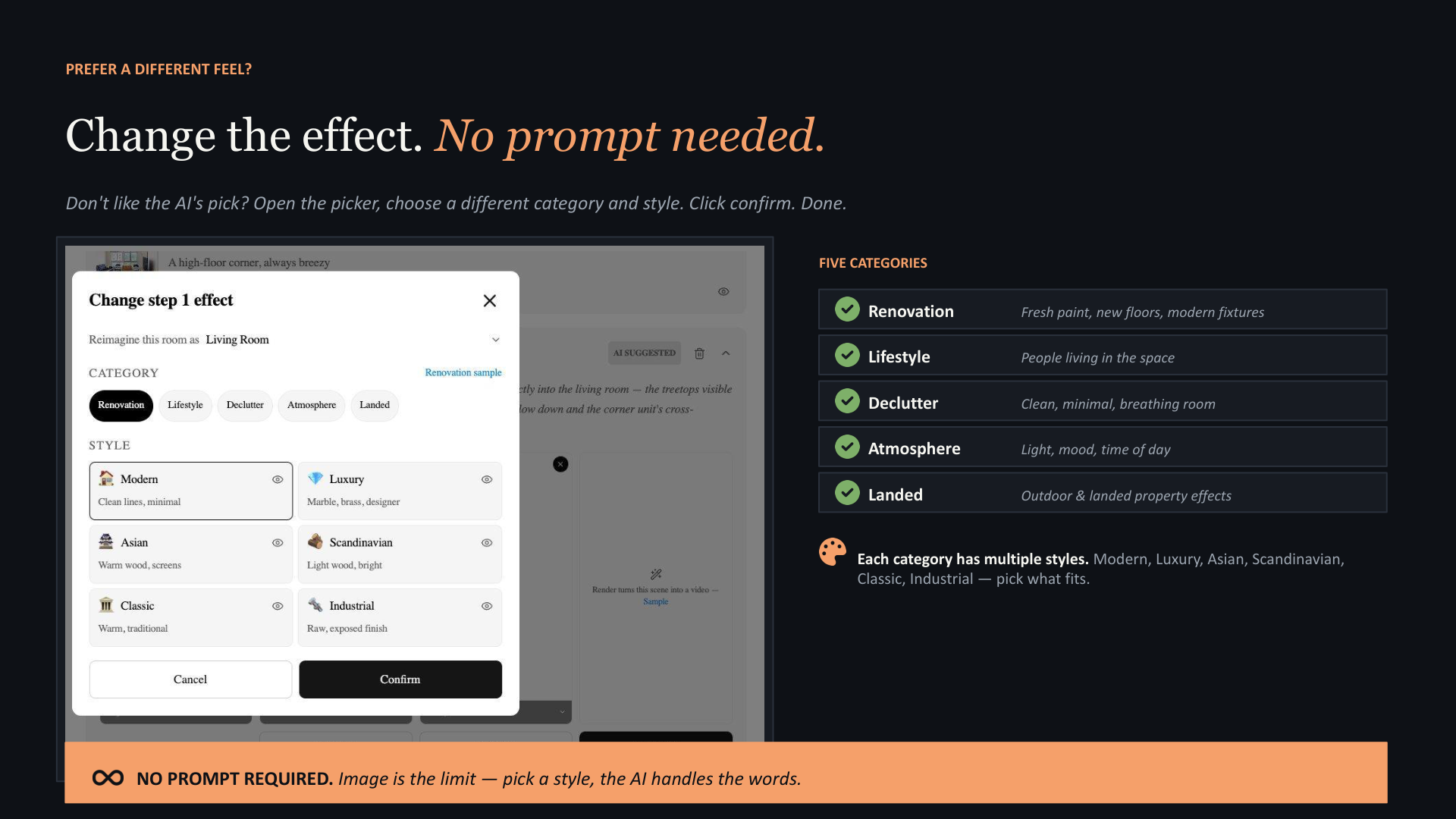
The five categories cover the situations property agents actually face:
- Renovation — fresh paint, new floors, modern fixtures. Use when the unit is dated.
- Lifestyle — people living in the space. Use for family-oriented listings.
- Declutter — clean, minimal, breathing room. Use when the photos show owner clutter.
- Atmosphere — light, mood, time of day. Use for view units (sunset, golden hour, evening).
- Landed — outdoor and landed-property effects. Use for terraces, semi-detached, detached.
Each category has style sub-options (Modern, Luxury, Asian, Scandinavian, Classic, Industrial). Match the style to your buyer profile — Modern for first-time HDB upgraders, Luxury for D9/D10 condos, Scandinavian for Punggol BTOs.
Step 5 — Hit Create. One Click Adds Everything.
Step 5 of 5Once every scene is rendered, the final step is a single click. PostAI stitches all the clips into one continuous reel and applies three branding layers automatically.
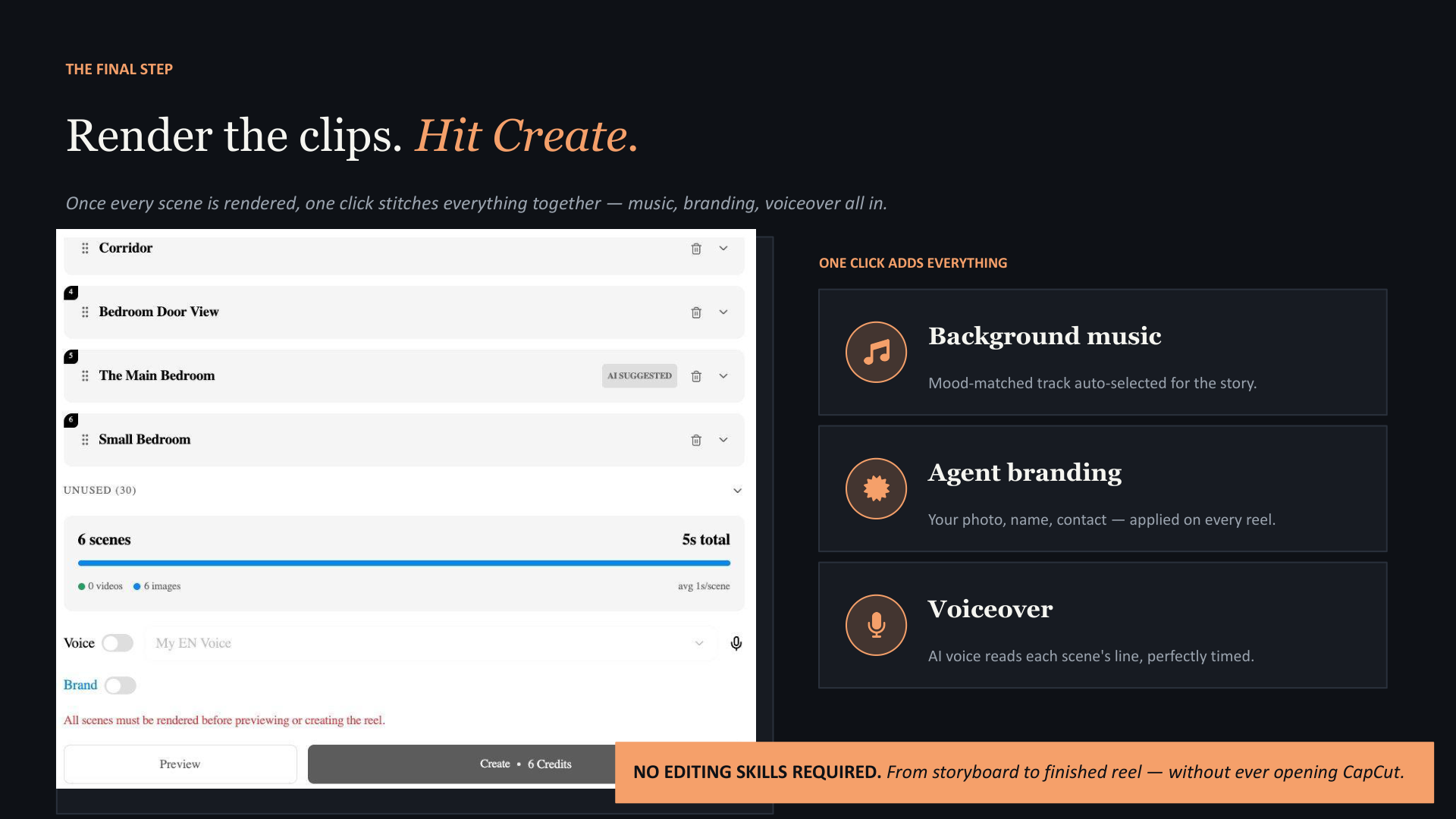
- Background music — a mood-matched royalty-free track auto-selected for the story
- Agent branding — your saved photo, name, CEA registration and contact number, overlaid on the closing frame
- Voiceover — AI voice reads each scene's line in your chosen language (EN / 中 / BM), perfectly timed to the visuals
The finished reel exports as 9:16 vertical MP4 — ready for Instagram Reels, TikTok, YouTube Shorts and WhatsApp Status without any further editing. You never have to open CapCut.
Manual Workflow vs Magic Reel — Side by Side
If you want to understand why Magic Reel is so much faster than the manual stack, here is the same workflow broken down both ways. Most agents do not need the manual route — but it is worth knowing what the AI is doing on your behalf.
| Step | Manual workflow | Magic Reel |
|---|---|---|
| Storyboard the video | 15 min in a doc / on paper | Auto-drafted on import |
| End-frame generation (×5–6 scenes) | 20 min in ChatGPT, prompt per scene | One-click per scene, no prompt |
| Clip generation (×5–6) | 30 min in Kling or Runway | One-click render per scene |
| Music + captions + branding | 30 min in CapCut | One click, applied automatically |
| Total time | ~95 minutes per video | Under 5 minutes |
| Skills required | Storytelling, prompt-writing, editing | Pick the listing, review, click |
Use the manual workflow when you want frame-level control on a hero listing — typically a $5M+ condo or landed property where 95 minutes is justified. Use Magic Reel for everything else: daily posting, new launches, batch-generating a reel for every active listing in your portfolio.
Four Storytelling Principles (Carry These Into Every Reel)
The tool does not write the story for you — it speeds up the execution. These four principles are the difference between a reel that stops scrolls and one buyers swipe past.
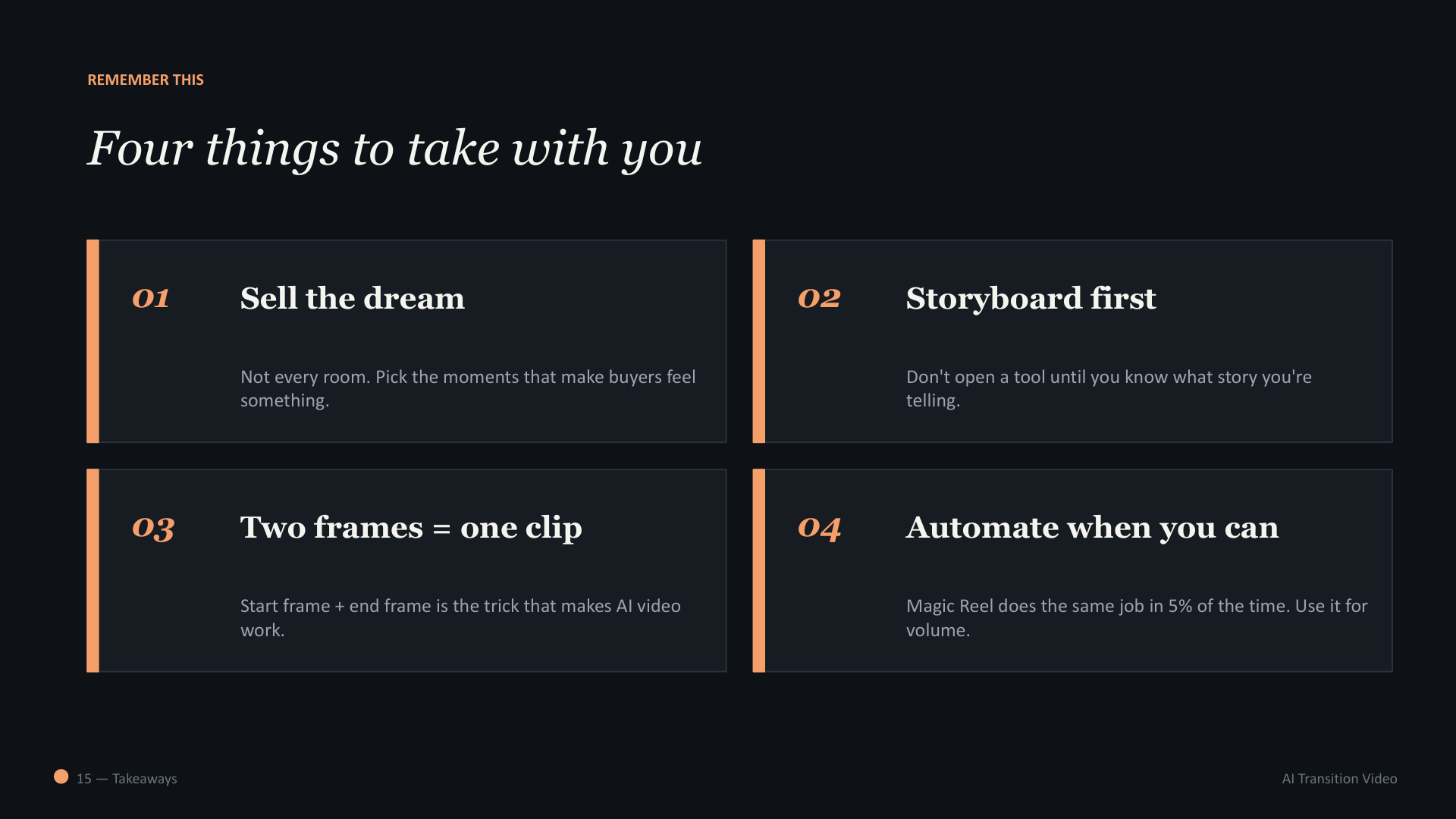
- Sell the dream, not every room. Pick the moments that make buyers feel something — the view, the light, the family scene. Skip the bathrooms and the corridor closeups.
- Storyboard first. Decide what story you are telling (a full day in the home, a couple's first move-in, an empty-nester's downsize) before you touch the tool. Magic Reel auto-builds a storyboard, but you should know what you want it to say.
- Two frames = one clip. The motion happens between the start frame and the end frame. Choose both carefully — bad input, bad clip.
- Automate when you can. Magic Reel does the same job in 5% of the time. Use it for volume; use the manual route only for hero listings where you want absolute creative control.
Common Mistakes (And How to Avoid Them)
Mistake 1: Importing a listing with only 3–4 photos
A thin photo set produces a thin reel. Magic Reel can fabricate transitions, but it cannot fabricate rooms. Aim for 6+ portal photos per listing. If a listing is sparse, take more photos on your next viewing.
Mistake 2: Skipping the storyboard review
The default scene order is the portal photo order — which is usually optimised for a portal grid, not a reel. Spend two minutes re-ordering: lead with the strongest shot, end with the closing moment (sunset balcony, empty hallway, agent contact).
Mistake 3: Over-using the Renovation effect
Renovation transitions are dramatic and easy to over-apply. If every scene is a Before → After renovation, the reel feels like a sales pitch. Mix in Lifestyle and Atmosphere for a more cinematic, less promotional feel.
Mistake 4: Leaving the AI voiceover untouched
The auto-written voiceover is a good draft, not a final script. Read each line out loud — does it sound like you, or like a marketing brochure? Tweak the lines to be shorter, more specific, more conversational before render. The voiceover is editable per scene.
Mistake 5: Ignoring the AI Voice → Your Voice swap
An AI voice converts well, but a real voice with your accent converts better. If you intend to post the same reel three times in a month, record your own voiceover on the second iteration. PostAI supports voice cloning so a 30-second sample produces a reusable AI version of your voice.
Frequently Asked Questions
How long does Magic Reel take to create a transition video?
Under five minutes from listing URL to finished reel for most listings. The manual workflow (ChatGPT + Kling + CapCut) takes around 95 minutes per video. Magic Reel collapses all those steps into a single guided flow.
Do I need to write any AI prompts to use Magic Reel?
No. Magic Reel auto-writes the story direction, auto-generates the end frame for each scene, and auto-picks background music. If you want a different look you choose from five visual categories (Renovation, Lifestyle, Declutter, Atmosphere, Landed) with multiple pre-built styles. The AI handles the underlying prompt.
Which property portals does Magic Reel import from?
PostAI Magic Reel accepts listing URLs from PropertyGuru, 99.co, EdgeProp and most major Singapore agency portals. Photos, address, price and unit details are extracted automatically — no manual upload.
What aspect ratio does Magic Reel export?
Magic Reel exports 9:16 vertical (1080x1920) by default — the format used by Instagram Reels, TikTok, YouTube Shorts and WhatsApp Status. The same source listing can be re-rendered in other ratios for landscape platforms or feed posts.
Can I edit the AI voiceover and on-screen text after Magic Reel generates the video?
Yes. Every scene's voiceover line and on-screen caption is editable before render. Open any scene to rewrite the line, regenerate the voice, or switch language (English, 中文, Bahasa Melayu).
How is Magic Reel different from a regular property listing video?
A standard listing video pans across static photos with text overlays. A Magic Reel transition video uses AI to generate the motion between two image frames — the original listing photo and an AI-recommended end frame — so each scene feels like a cinematic shot rather than a slideshow.
What if I want full creative control over every frame?
Use the manual workflow (ChatGPT for end-frame generation + Kling for clip + CapCut for compose) when you need frame-level control on a hero listing. For everything else, Magic Reel produces 95% of the result in 5% of the time.
Create Your First Transition Reel in Under 5 Minutes
Paste any listing URL and PostAI Magic Reel does the rest — storyboard, scenes, transitions, music, branding and voiceover.
Try PostAI Free Book a Demo