Quick Answer
To create an Insight Video with PostAI, open Create Video → Insight Video, then either paste a property news article URL or write your own script in the "Write Your Own" field. PostAI auto-splits the content into scenes with a voiceover line per scene. You edit any scene's line, pick the B-roll source for each scene (Stock, Library, Upload or AI-generated), set your avatar and voice, optionally switch language (EN / 中文 / BM), and click Create. A ~1-minute branded video is ready in roughly 3 minutes of your time, from 12 credits.
What an Insight Video Is — And Why Top Agents Post Them Weekly
An Insight Video — also called a Branding Video — is a short talking-head clip where your AI avatar reacts to property news, explains a market move, or walks through your own take on a neighbourhood. B-roll cuts behind you as you speak, with burned-in captions. Output is a 60-second, fully branded MP4, ready for Reels, TikTok, YouTube Shorts and WhatsApp Status.
The format is what separates "agents who post listings" from "agents who have followers." Posting a listing carousel makes you look like a salesperson. Posting a 60-second take on the latest URA cooling measure makes you look like a market authority. The algorithm rewards the second pattern with reach; buyers reward it with calls.
The reason most agents don't post Insight Videos is not lack of ideas — it is time. Filming yourself takes lighting, retakes and awkward camera presence. Most agents give up after the third try. Insight Video removes the filming step entirely: your avatar speaks, your voice plays, your branding overlays. You just feed it the topic.
This guide walks through the entire Insight Video flow, screen by screen, with screenshots from the live PostAI interface.
Step 1 — Import Your Content (Article URL or Write Your Own)
Step 1 of 5Inside PostAI, tap Create Video, then open the Insight Video card. You will see two input modes — both produce the same fully branded video output.
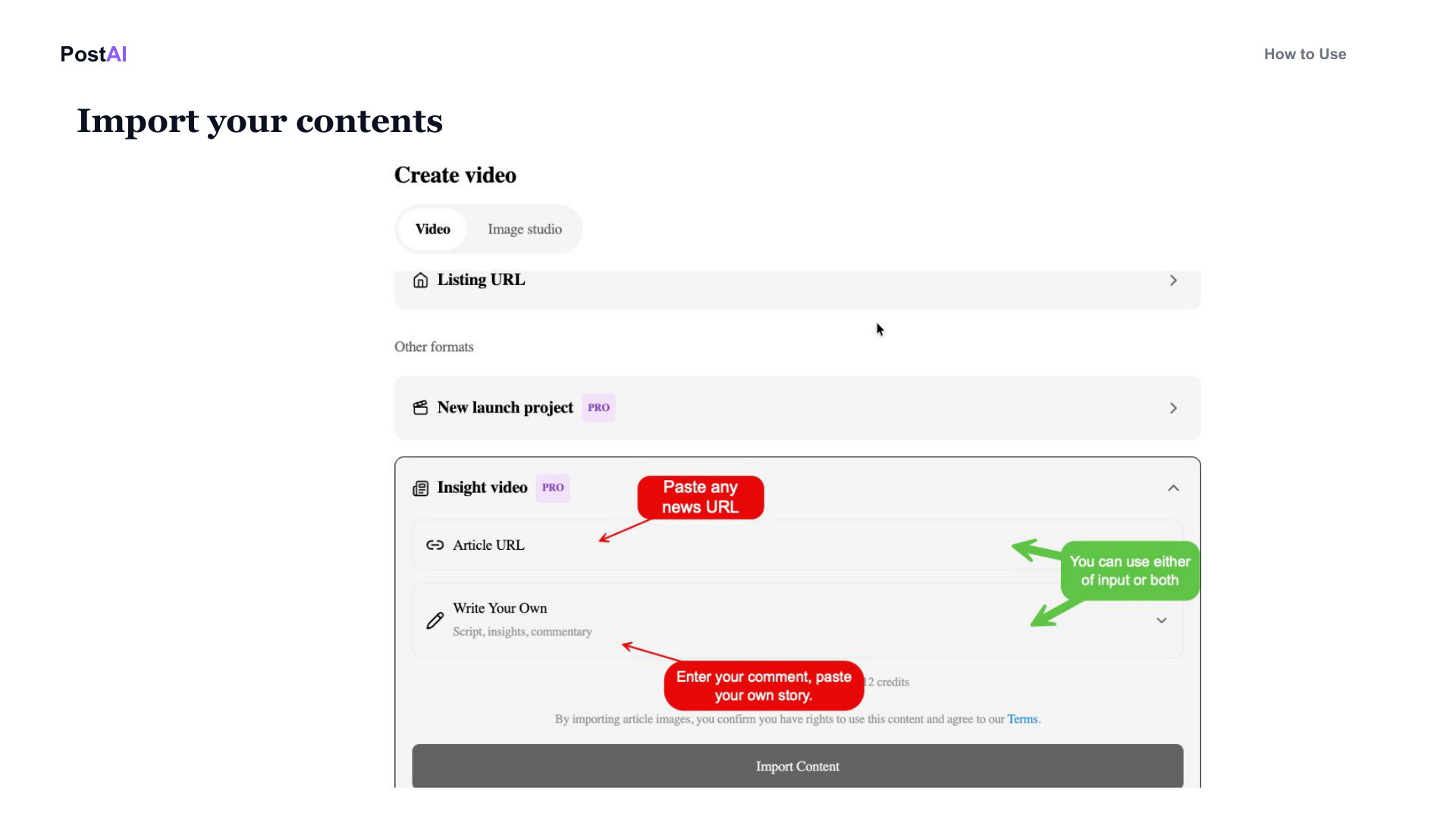
The two input modes:
- Article URL — Paste any Singapore property news link (Business Times, EdgeProp, Mothership, Stomp, CNA, Stacked Homes). AI summarises the article and writes a script in your tone. Best for fast news reactions and timely market takes.
- Write Your Own — Paste or type your own script (up to 2,000 words). Best for evergreen "expert series" content like district deep-dives, first-time buyer mistakes, or your own market analysis.
You can also combine both: paste an article URL and add your own opinion in the Write Your Own field. The AI weaves them into one cohesive script. Click Import Content to move on.
Step 2 — Edit the Scene Breakdown
Step 2 of 5PostAI splits your content into scenes — each scene is one shot with one voiceover line. The scene editor lets you control everything before render.
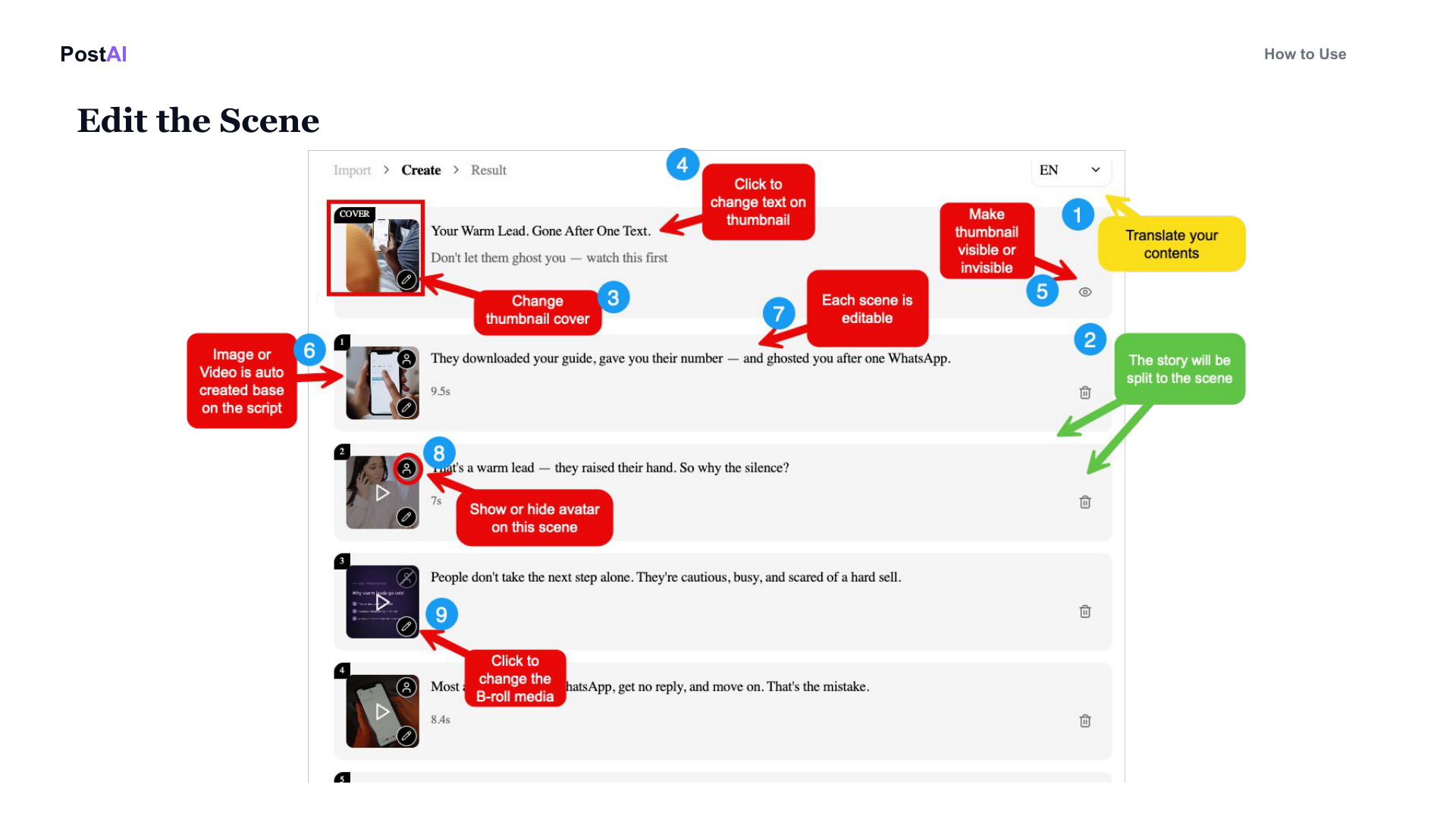
What you can do in the scene editor:
- Edit any line — Click the text on a scene to rewrite the voiceover. Shorter, more specific lines convert better than long sentences.
- Change the cover thumbnail — The first scene is the cover; swap it for a stronger hook image if needed.
- Show or hide the avatar per scene — Hide the avatar on data-heavy scenes (charts, district maps) and show it on hero moments (intro, closing CTA, opinion lines).
- Reorder, add or delete scenes — Drag to reorder. Strong hook in the first 1.5 seconds; clear CTA in the last 2 seconds.
- Translate — Apply a language switch at the storyboard level (see Step 5).
Spend the most time here. A two-minute edit pass on scene text and order is the single biggest lever on view-through rate.
Step 3 — Edit the B-Roll (Four Sources Per Scene)
Step 3 of 5For every scene, you can pick the B-roll from four sources. They are all in the same picker, so you can mix sources within a single video — Stock for general scenes, Library for your brand intro, AI for a custom shot you need but cannot film.
Source 1: Stock — Singapore-aware HD footage
The default. Auto-matched HD footage from a royalty-free library with Singapore-aware search baked in. Query a Singaporean term ("HDB corridor", "Marina Bay skyline", "Punggol waterway") and the results come back local, not American-suburb generic. Preview and use any clip.
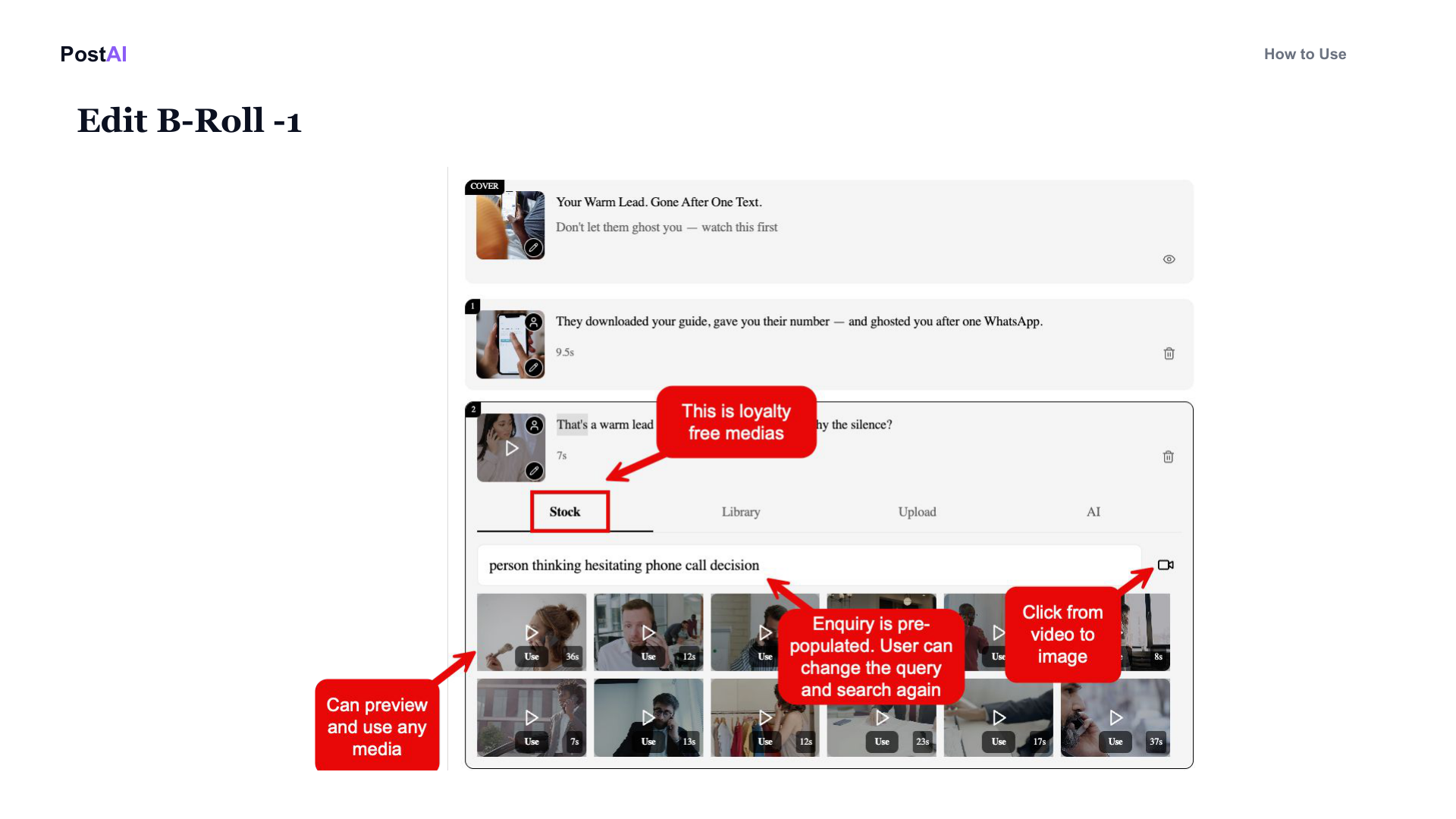
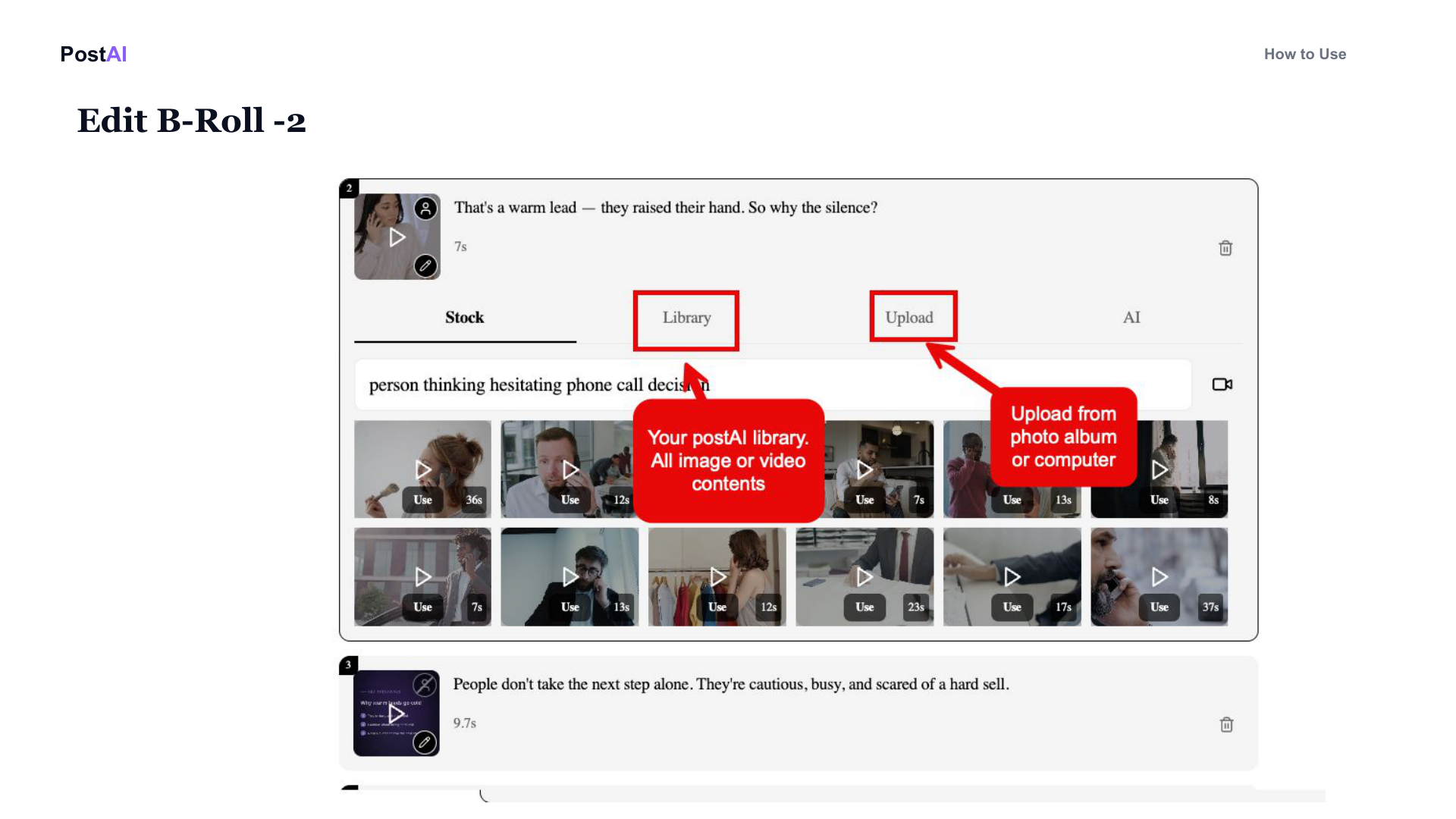
Source 2: Library — your saved clips and brand assets
Reusable across videos. If you have an intro clip, an outro CTA, or a recurring brand asset (e.g. your office exterior, your team shot, your last viral hook), save it once and reuse it. Library makes a weekly series visually consistent without re-uploading the same files.
Source 3: Upload — your own footage
Drop in your own listing photos, drone footage or B-roll. Useful when your point requires a specific shot the stock library cannot supply — a particular school, a particular MRT exit, a specific landed estate.
Source 4: AI — generate custom image, B-roll or data video
When neither stock nor your own footage works, the AI tab generates a custom asset for the scene. Three sub-options:
- AI Image — generate a custom still (1 credit each)
- AI Video — generate a B-roll clip (3 credits per 5 seconds, max 6 credits for up to 10 seconds)
- Data Video — animate numbers and data with motion (2 credits per video, independent of clip length)
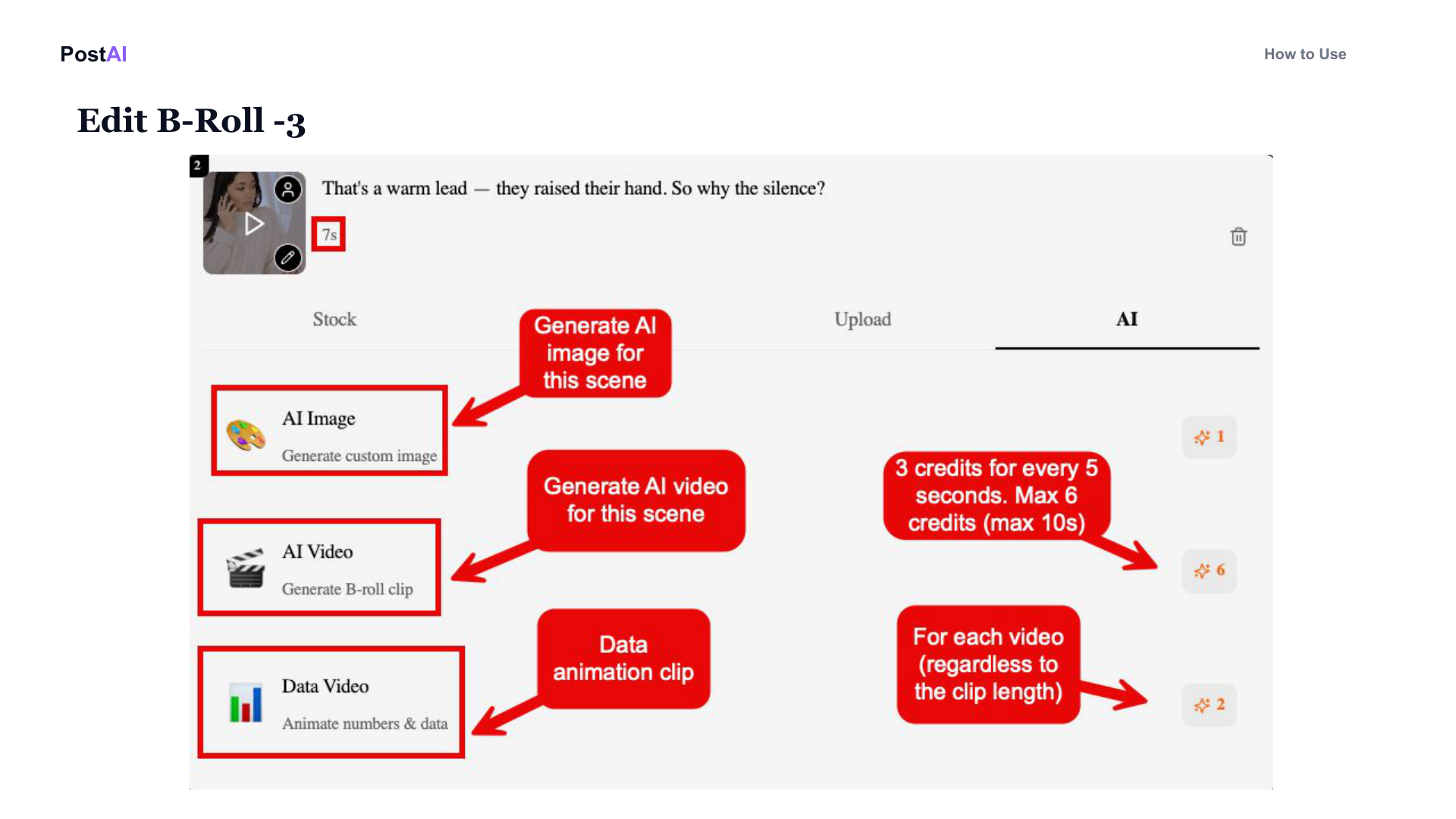
The Data Video option is the best-kept secret for market-update content. Animated charts of district price trends look like TV-broadcast graphics and dramatically increase shareability.
Step 4 — Set Your Avatar and Voice
Step 4 of 5Your avatar is generated once and reused on every video forever. You only need to set it up the first time.
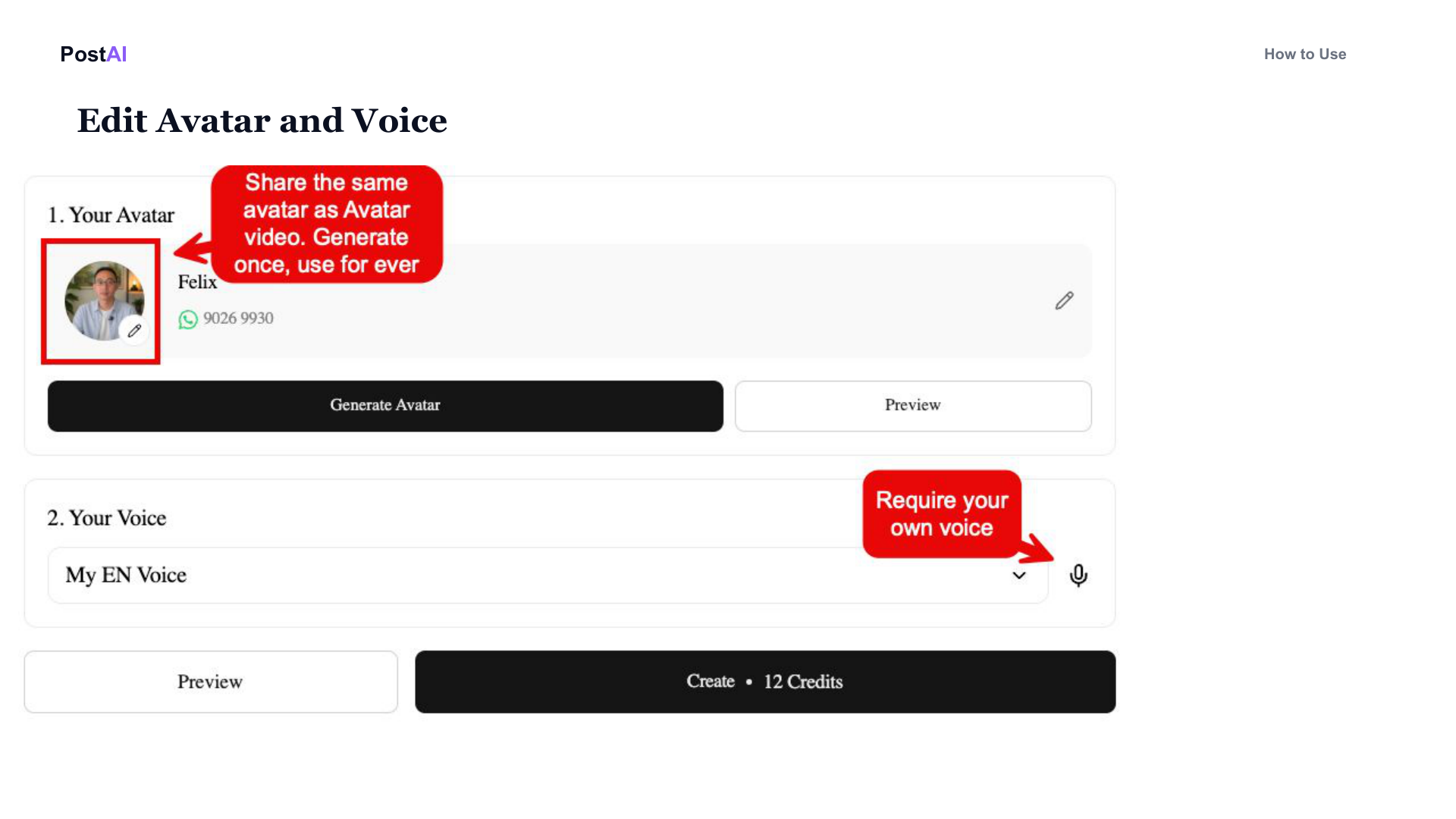
- Your Avatar — The same avatar is shared with the Avatar Video feature. Generate it once from a head-and-shoulders photo; PostAI handles lip-sync to whichever voiceover plays.
- Your Voice — Pick from the default AI voices, or clone your own with a 30-second sample. A cloned voice converts noticeably better than a generic AI voice; it is one of the highest-ROI 5-minute setups in the product.
- Preview — Run a 5-second preview before render to confirm the lip-sync and tone match what you want.
- Create — The Create button shows the credit cost (12+ depending on length and AI B-roll usage).
Step 5 — Switch Language and Create
Step 5 of 5Singapore is multilingual; your content should be too. The language dropdown on the storyboard switches the output language end-to-end — avatar speaks in the selected language, captions are burned in, voiceover is regenerated.
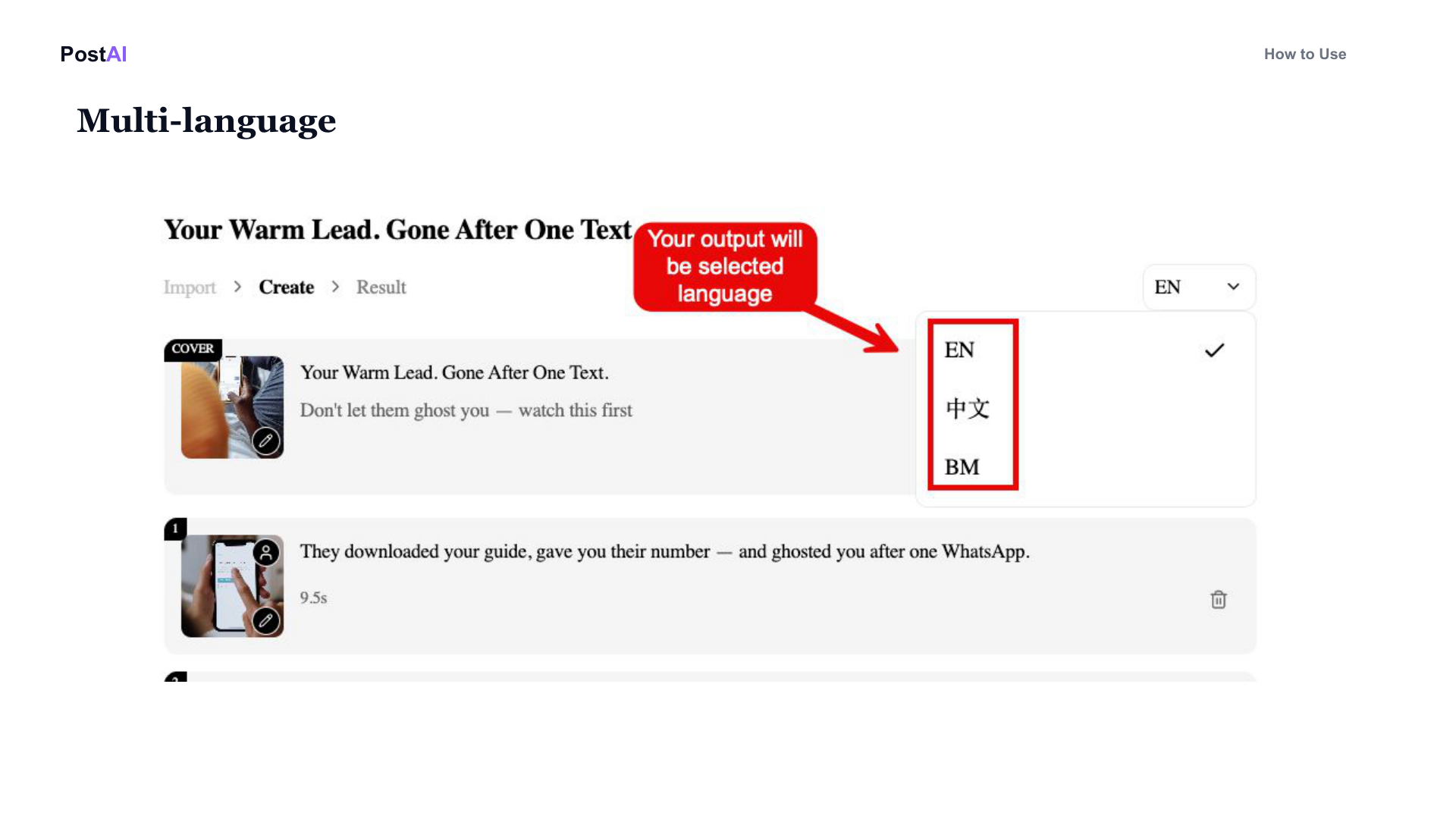
Three supported languages cover the Singapore property buyer base:
- English (EN) — Reaches the broadest base of HDB upgraders and PR buyers.
- 中文 (Mandarin) — Connects with Mandarin-speaking investors, China buyers and new citizens. Greenfield content opportunity — most agents post EN only.
- Bahasa Melayu (BM) — Builds trust with the Malay-Muslim community segment.
The fastest content multiplier in PostAI is: write one script, render it three times (EN, 中, BM), post each on a different day. Three videos, one script, three audiences.
When you are ready, click Create. The video renders in roughly 60–90 seconds and downloads as a 9:16 vertical MP4 with your branding overlay applied.
Insight Video vs Magic Reel — Which One Should You Use?
PostAI offers two distinct video formats. Use them for different jobs.
| Insight Video | Magic Reel | |
|---|---|---|
| Purpose | Personal-brand content — your take on news, market, neighbourhood | Listing-specific cinematic reel from listing photos |
| Input | News URL or your own script (up to 2,000 words) | Listing URL from PropertyGuru / 99.co / EdgeProp |
| Output | Talking-head video with avatar, voice, B-roll, captions | Cinematic transition reel with start frame → end frame motion |
| Time investment | ~3 minutes per video | Under 5 minutes per video |
| Best for | Authority building, market commentary, weekly series | Daily listing posts, new launches, "sell the dream" content |
| Cost | From 12 credits | Per-render credits |
The two are complementary — a top-producing agent's feed typically alternates between Magic Reels for listings and Insight Videos for commentary. Listings sell the unit; Insight Videos sell you.
Six Insight Video Use Cases That Work
Ideas your audience is already searching for. Pick one source per month — don't spread thin. Depth beats variety for building authority.
- News Reaction (GLS / new launch breakdowns) — Paste the latest URA news → 60-second take on what it means for the area. Speed beats polish.
- Market Take (cooling measures explained) — Be the first agent on Instagram with a clear take on each policy change. The algorithm rewards timeliness within the first 24 hours.
- Neighbourhood deep-dive (e.g. "Why D15 outperforms D14") — Use Write Your Own with your own analysis. AI handles the B-roll. Evergreen content that captures search intent all year.
- Buyer tips (first-time buyer mistakes) — Evergreen, search-friendly. Works year-round because the question never goes out of date.
- Data story (price trends with animation) — Use the AI Data Video B-roll option for animated stats. Looks like a TV broadcast and converts well on LinkedIn and YouTube Shorts.
- Agent series (weekly market update) — Build a personal show. Same format, fresh news every week. Followers compound. Batch-record 4 videos in one sitting and you're set for the month.
Frequently Asked Questions
What is the difference between Insight Video and Magic Reel?
Insight Video creates a talking-head branding video — your AI avatar speaks to camera about a topic, with B-roll cut behind you. Magic Reel creates a cinematic transition reel from listing photos. Use Insight Video for personal-brand content; use Magic Reel for listing-specific reels.
How much does an Insight Video cost in PostAI credits?
An Insight Video starts from 12 credits for a roughly 1-minute video with your avatar and voice. AI-generated B-roll (image, video or data animation) consumes additional credits — typically 1–6 per B-roll asset depending on type and length.
Can I write my own script instead of pasting a news URL?
Yes. The import screen has two modes: Article URL (paste any news link, AI summarises) or Write Your Own (paste or type up to 2,000 words). Both produce the same branded video output. You can also combine the two.
Can I generate the same Insight Video in English, Mandarin and Malay?
Yes. The language dropdown switches the entire output — avatar voice, burned-in captions, scene-matched B-roll. One source script, three branded outputs. Render each once and you have three days of content.
What B-roll sources can I use?
Four sources per scene: Stock (royalty-free, Singapore-aware), Library (your saved clips and brand assets), Upload (your own footage), AI (generate custom image, B-roll clip or data-animation video). You can mix sources within one video.
Do I need to record a voice sample to use PostAI Insight Video?
No — default AI voices ship with the platform. For higher conversion you can clone your own voice with a 30-second sample; the cloned voice is then reusable across every video you generate. Voice cloning is optional but recommended.
The AI avatar doesn't look 100% real — is that a problem?
No. Audiences forgive an imperfect avatar. They never forgive a boring take. The actual drivers of conversion are: a clear hook in the first 3 seconds, a take buyers haven't heard before, specifics (numbers, names, neighbourhoods), and posting consistency. Optimise for those first.
Build Your Expert Brand on Autopilot
Paste any property news link — or your own script — and PostAI Insight Video does the rest. Avatar, voice, B-roll, captions, agent branding.
Try PostAI Free Book a Demo