Support
Frequently Asked Questions
Find answers to common questions about PostAI's features, pricing, and platform support
General & Account
Video Creation & Customization
AI Image Studio & 3D Maps
Publishing & Posting
Plans & Pricing
Billing & Cancellation
Credits
Referrals
Troubleshooting: Facebook & Instagram
No results found. Try searching with different keywords.
General & Account
1. Do you support real estate listings as well?
Yes. PostAI supports property listings including PropertyGuru, 99.co, Propnex and more.
2. Can I use PostAI for both property and car listings?
No. PostAI is currently focused exclusively on the Singapore real estate industry. We do not support automotive listings at this time.
3. Do you have an app to download?
We don't have a native app yet, but you can add PostAI to your home screen.
iPhone (Safari): Tap Share → Add to Home Screen.
Android (Chrome): Tap Menu → Add to Home Screen.
Watch tutorial: https://youtube.com/shorts/5dOitcdtIRk
iPhone (Safari): Tap Share → Add to Home Screen.
Android (Chrome): Tap Menu → Add to Home Screen.
Watch tutorial: https://youtube.com/shorts/5dOitcdtIRk
4. Can I change my email address?
Email addresses are locked to your login provider (e.g., Google, Facebook). If you need to migrate data to a new email, contact [email protected].
Video Creation & Customization
5. Can I choose which voice reads the video script?
Yes. You can select from multiple AI voices (e.g., Lilian, Anithea, Lim, Julia, Jacky, Gabriel) with different accents and tones.
6. Can I write my own video script?
Yes. You can input custom subtitles in English or Chinese. These will be used for voice-over and on-screen text.
7. Can I use my own voice for narration?
Yes! You can use your own voice via our voice cloning feature. Watch the tutorial: https://tutorial.postai.sg/demo/cmldqc4ob0001yo0i40fd23vy
8. Do I need to record my voice every time I create a video?
No. You only need to record your voice once. After that, your voice is saved and reusable for all future videos.
9. Why can't I hear my voice after recording?
This usually happens if the voice wasn't recorded properly, often due to a disabled microphone. Ensure you see the active sound wave (waveform) to confirm your voice is being captured. Check your browser or device microphone permissions and try again.
Recording Waveform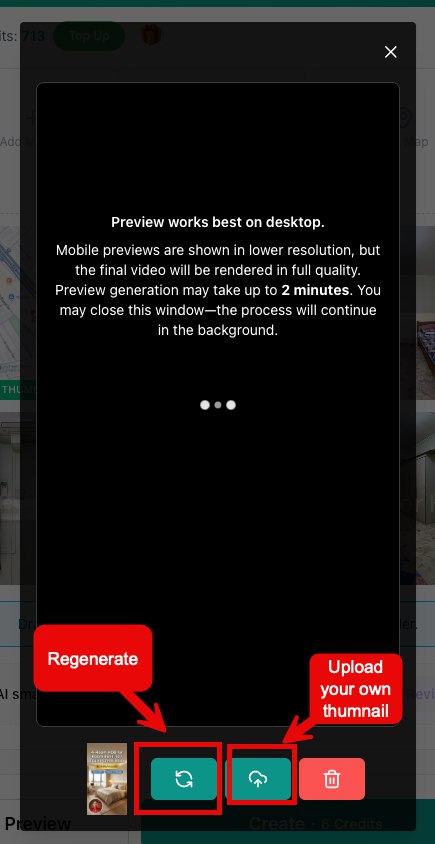
10. Can I turn off the voice entirely?
Yes. You can disable voice-over if you want a music-only video.
11. I found the image in the preview is not me (Avatar/Talking Head). What should I do?
While rare, AI hallucinations can sometimes cause the preview to display an incorrect avatar. Simply click the refresh icon to generate a new preview.
Regenerate Preview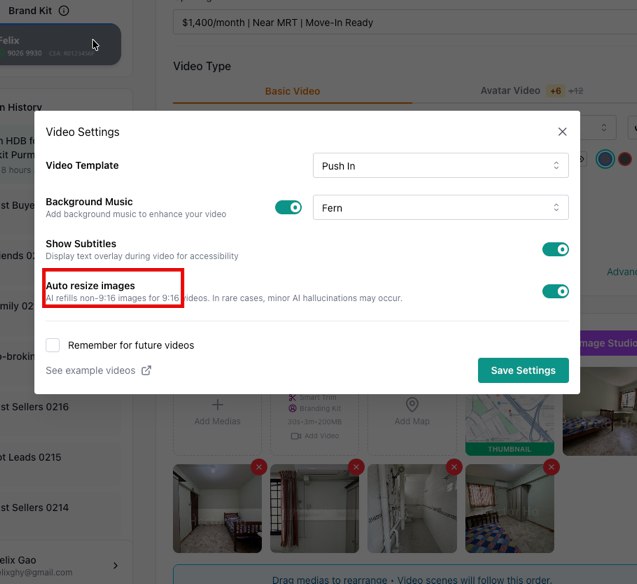
12. Why does my preview take so long to load?
For basic videos, previews typically take 1–2 minutes. If using your own voice for the first time, ensure the recording is not empty. You can safely close and reopen the preview window — generation continues in the background.
Check Voice Recording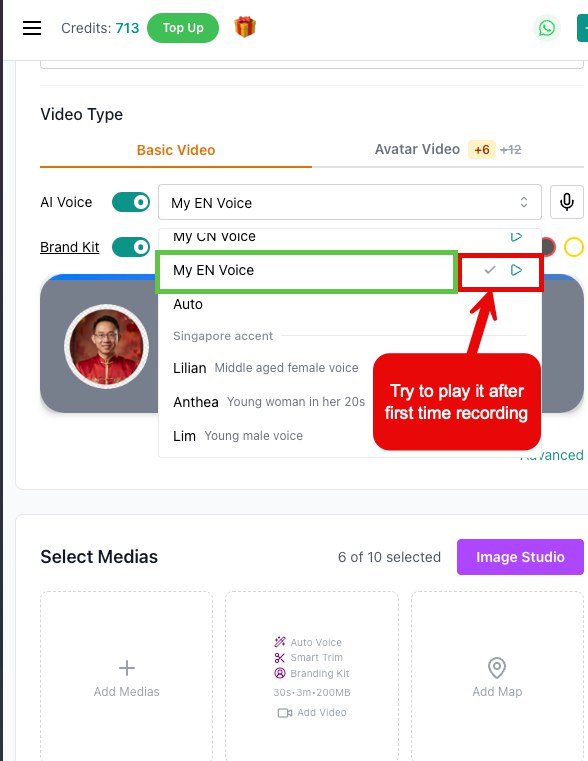
13. Can I select which images appear in the video?
Yes. You can manually select 6–10 images during creation and drag-and-drop to reorder them.
14. Can I upload my own listing images manually?
Yes. Click "Upload Listing Manually" to input text and photos without using a URL at the Import page (app.postai.sg).
15. Can I change the video format (e.g., 9:16, 1:1)?
Yes. You can repurpose your generated video into multiple formats by spending credits again.
16. What formats are supported?
Video ratios include 9:16 (Reels/Shorts), 1:1, and 16:9. Image outputs are optimized for mobile and desktop viewing.
17. Can I change my branding kit info (name, photo, WhatsApp, logo)?
Yes. You can update most fields in your Brand Kit at any time. Access it via the menu (three horizontal lines) at the top left, or click directly on your brand kit on the video creation page.
Note: Your CEA number can only be changed once.
Note: Your CEA number can only be changed once.
Brand Kit Menu Access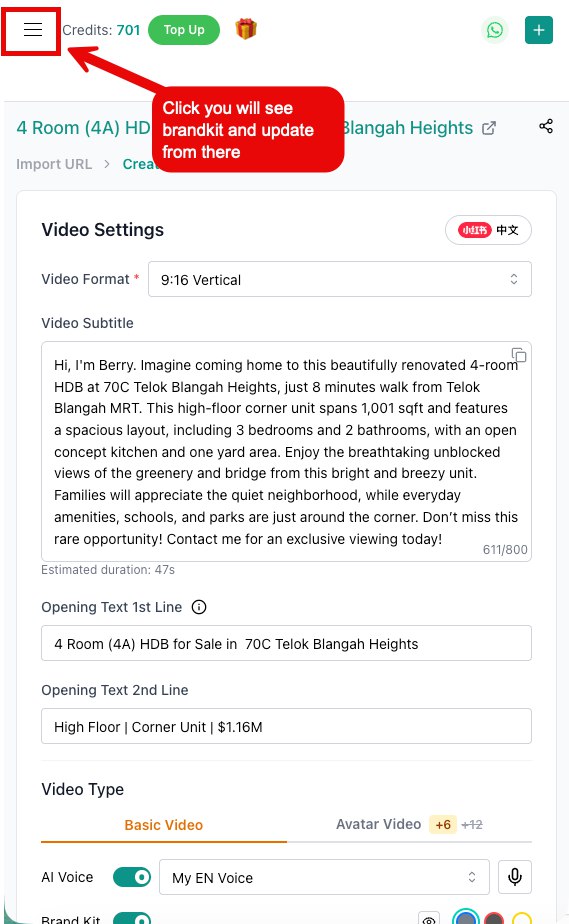
Brand Kit Direct Access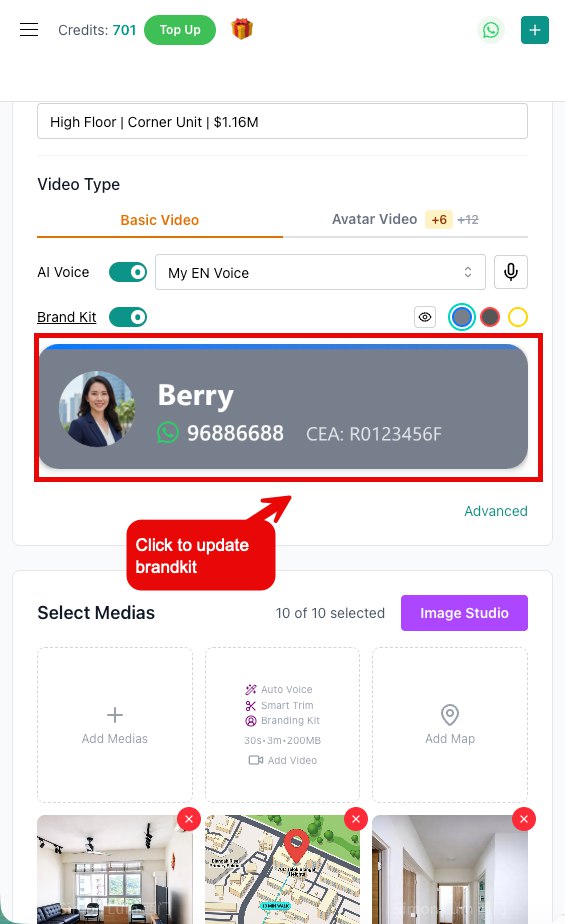
18. Is brand kit customization available?
Yes, you can turn on/off elements like avatar, contact, logo, etc., and preview portrait and landscape layouts.
19. Are there any platform-specific restrictions?
Yes. Xiaohongshu does not allow contact info in videos, so the brand kit is turned off by default. You can force-enable it for platforms like WeChat.
20. Once a video is created, can I change or edit it?
No. Once generated, a video cannot be modified. You will need to regenerate it, which consumes additional credits. We strongly recommend using the free preview feature before final generation.
21. When I try AI smart sync, how do I change the length of each frame/image?
The length of each scene is automatically calculated based on your speech speed and the number of words. To adjust duration, update the text for that scene — the AI will match the duration to the spoken audio.
22. In the AI smart sync feature, how do I know my updated script length?
After updating your script, click the sync button (next to the AI smart sync toggle). This will synchronize the timing and show you the exact length of each frame.
Sync Review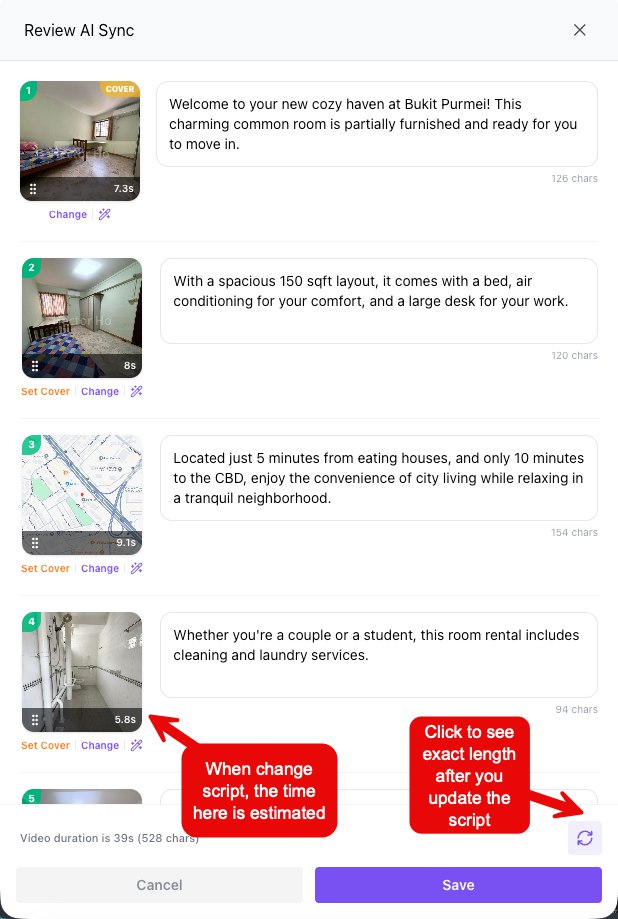
23. Why does the time on my video clip change when I edit the script?
When you modify the script for a specific scene, the duration shown becomes an estimate. Click the circular arrows at the bottom right to see the actual final duration.
24. Where can I see the total length of my AI-generated video?
The total video duration and total character count are displayed at the bottom left of the "Review AI Sync" window.
25. How do I choose which image appears as the thumbnail for my video?
Within the "Review AI Sync" screen, click the cover button underneath any image thumbnail to designate it as the primary cover image.
26. What if my video includes AI hallucinations?
AI hallucinations can occur when the system auto-refills an image to fit a different aspect ratio. To avoid this, go to Settings and turn off the "Auto-refill" option. The image will display with black bars (letterboxing) instead.
27. What are the limitations when creating a video using my own footage?
Currently, the system supports one video footage clip combined with up to 2 images. The sequence is fixed: the first image serves as the thumbnail and the second is designated for the map. Including these images is optional.
28. Where can I find all my past videos?
All past imported listings and created videos are stored in your dashboard. Click the three horizontal lines at the top left to access them.
Access Past Videos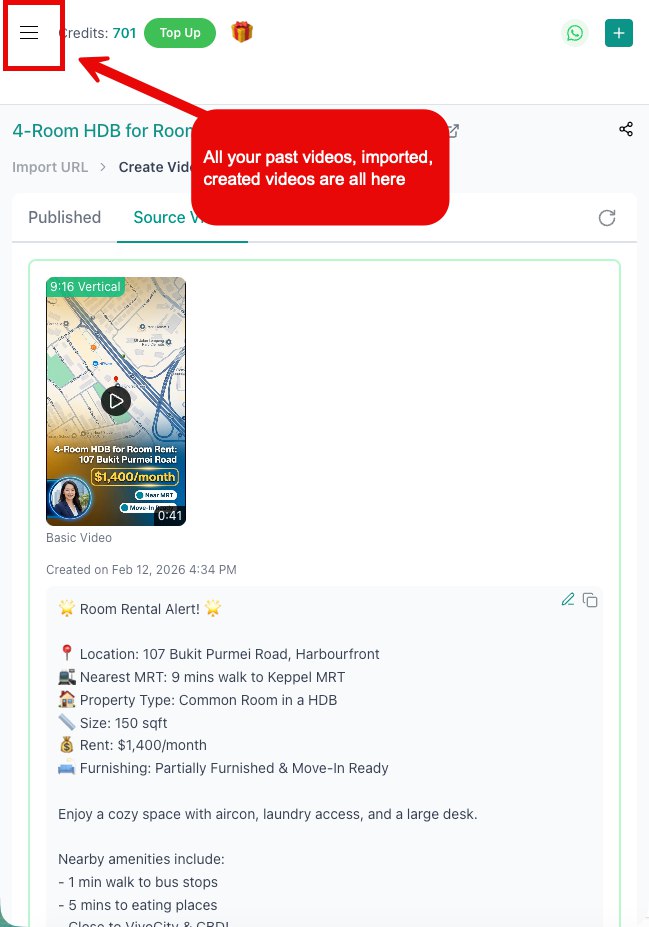
29. In my video history, what do "Draft" and "Video" mean? Can I delete them?
- Draft: The listing has been imported but the video has not been created yet.
- Video: The video has been created successfully.
You can delete any item by clicking the delete icon.
Video History Status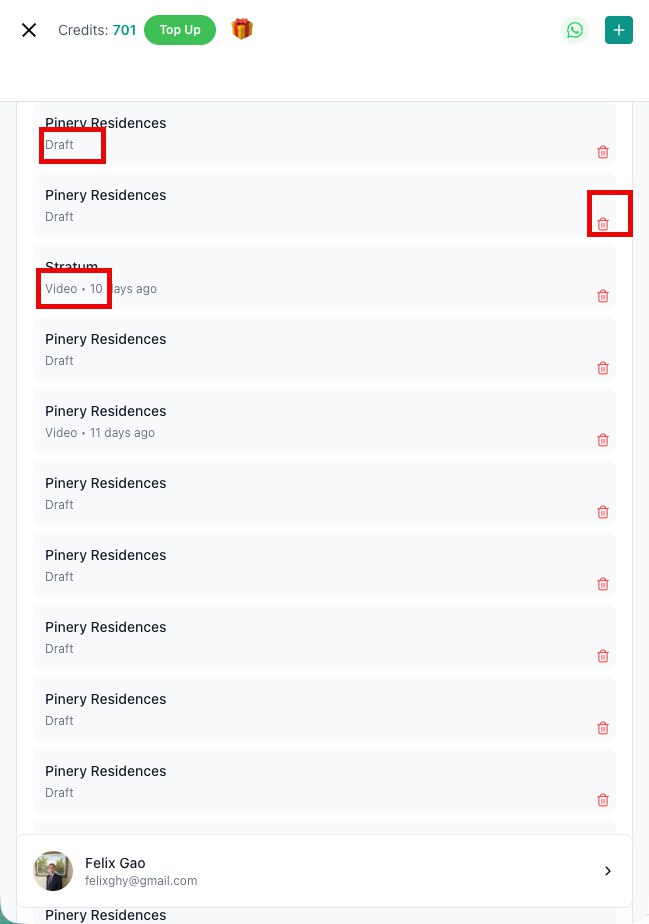
30. How can I change an existing video or recreate it for a different platform?
No need to re-import the listing. Go to the dashboard, locate your video under the Videos tab, and click the recreate icon (circular arrow) to return to the creation page with all previous data pre-loaded.
Recreate Existing Video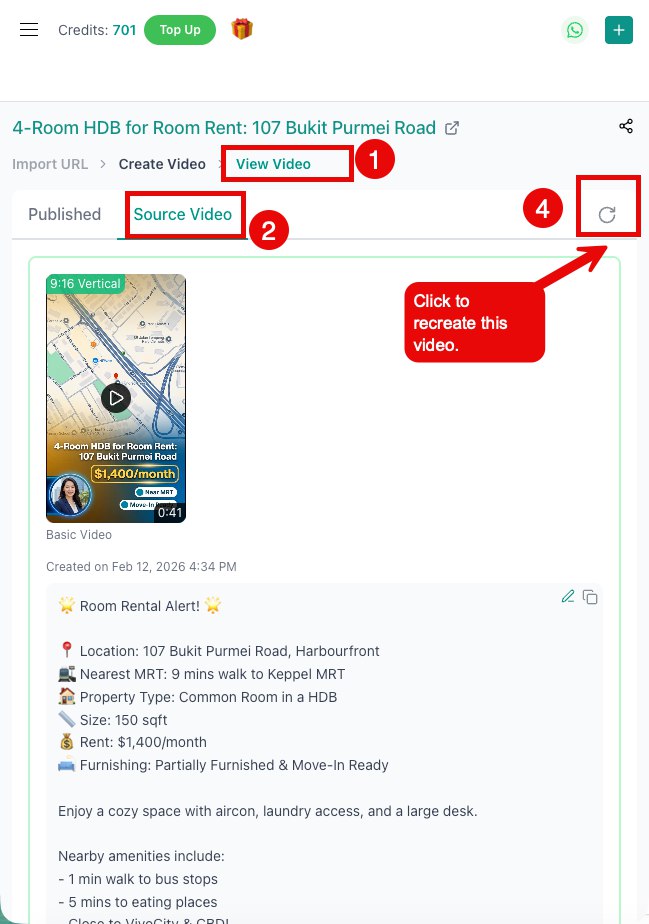
31. For Basic Video (Image to Video), how can I disable the "Created by PostAI" logo?
We plan to add an option for members to hide the watermark in the future. For now, all basic videos will always display the PostAI logo.
AI Image Studio & 3D Maps
32. Where can I use Image Studio?
There are several ways to access Image Studio:
- On the video creation page, enhance any images shown.
- Within the Review AI Sync window — select any image and use Image Studio directly.
- Via the Image Studio tab — upload photos, enhance them, and download directly.
Access Image Studio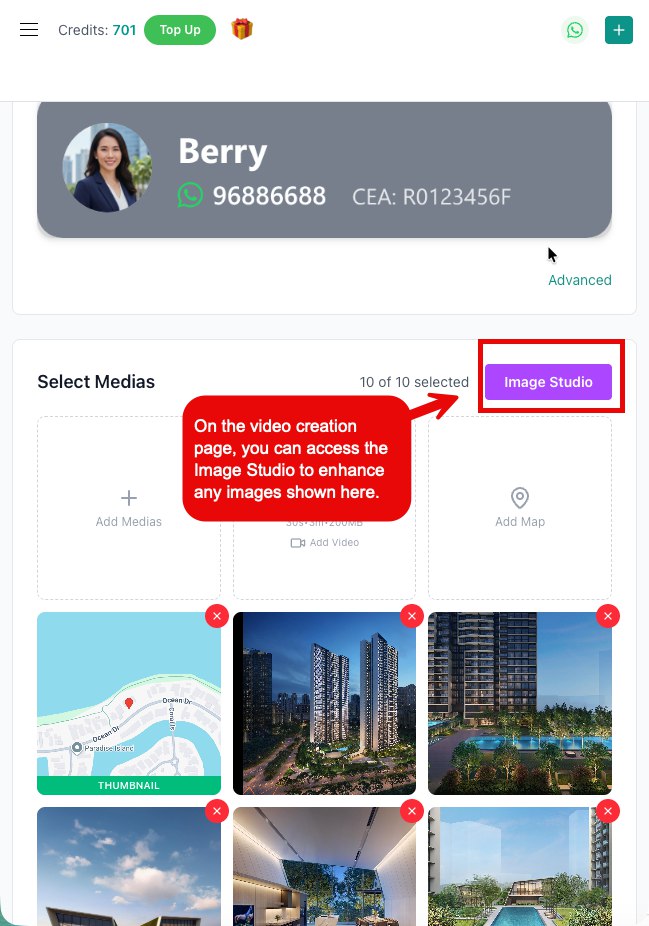
33. How can I find my past images?
All your uploaded and AI-enhanced images are saved in your personal library. Click the library button to access them.
Access Image Library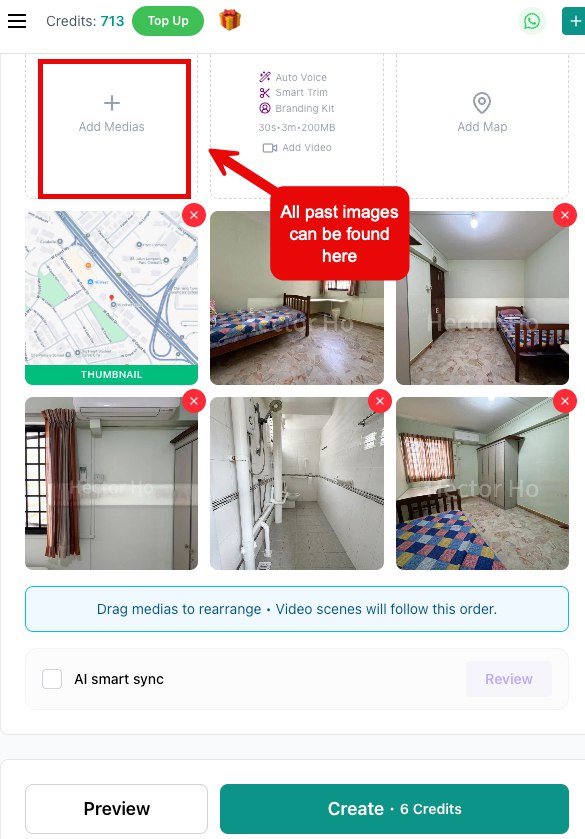
34. I touched up my images before, but where can I find them?
All previously enhanced images are saved in your personal library. Click "Add Images" then select "Select from library".
Select from Library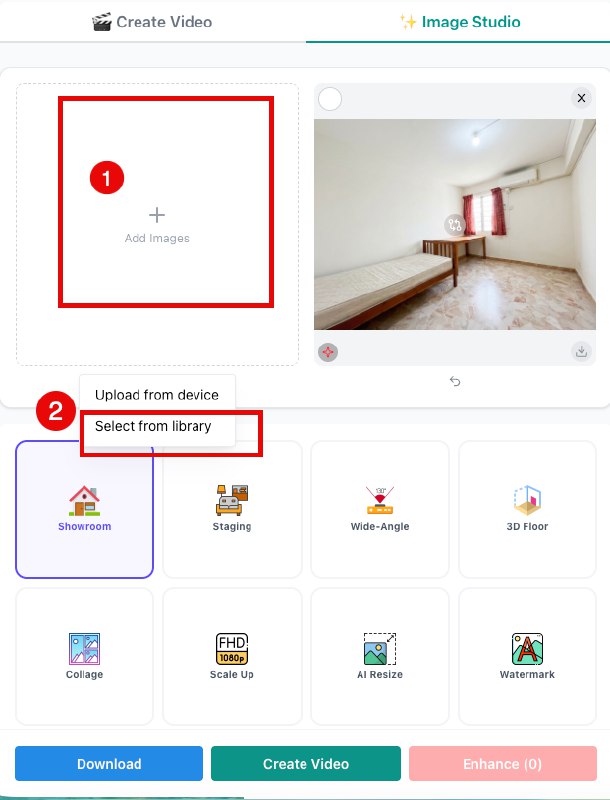
35. If the generated image is not what I want, does it still cost credits?
Yes. Unlike videos, there is no preview for AI Image Studio generation. As long as an image is generated, your credits will be deducted — even if you choose not to use the result.
36. How are credits calculated for features that use multiple input images (like Wide-Angle or Collage)?
Credits are charged based on the number of output images generated. For example, if you select 3 images to create a single Wide-Angle image, the cost is only 1 credit.
37. I don't have a listing URL, only images. Can I still create a video?
Yes! Upload and enhance your images via the Image Studio tab, then click "Create Video." Note that you'll need to manually write your script since there's no listing URL to pull info from.
Create Video from Studio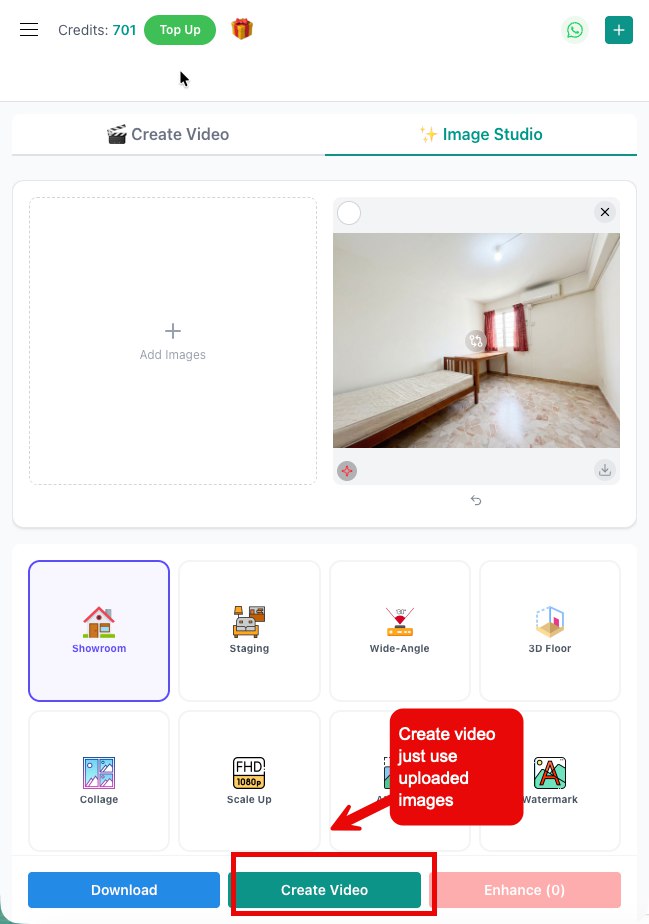
38. How many credits does AI image touch-up cost?
The cost depends on your membership status:
- Member: 1 credit per image.
- Non-Member: 2 credits per image.
39. How do I add a 3D map to my video?
3D maps are automatically generated from your listing source. If missing or incorrect, click "Add Map" to regenerate. You can also manually switch between 2D and 3D maps, or pick from your image library.
Tutorial: https://tutorial.postai.sg/demo/cmlucnjqh2ttnd2nt28yn2h6k
Tutorial: https://tutorial.postai.sg/demo/cmlucnjqh2ttnd2nt28yn2h6k
Regenerate Map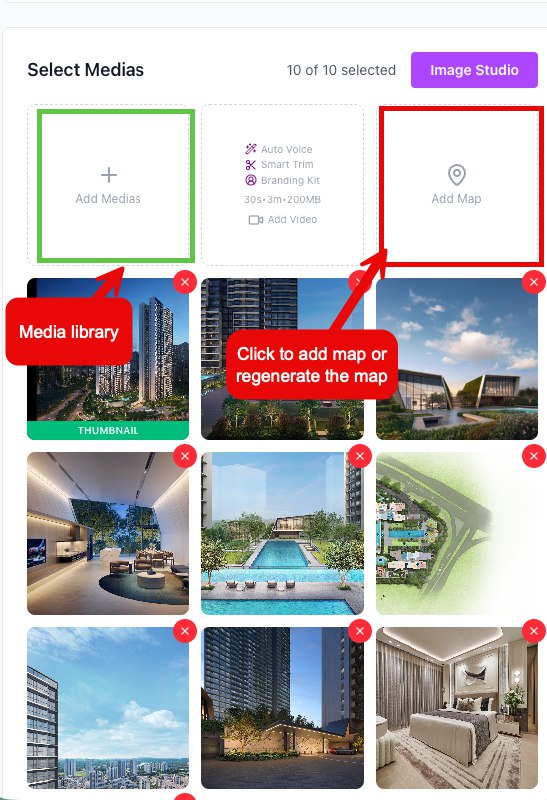
Select 2D or 3D Map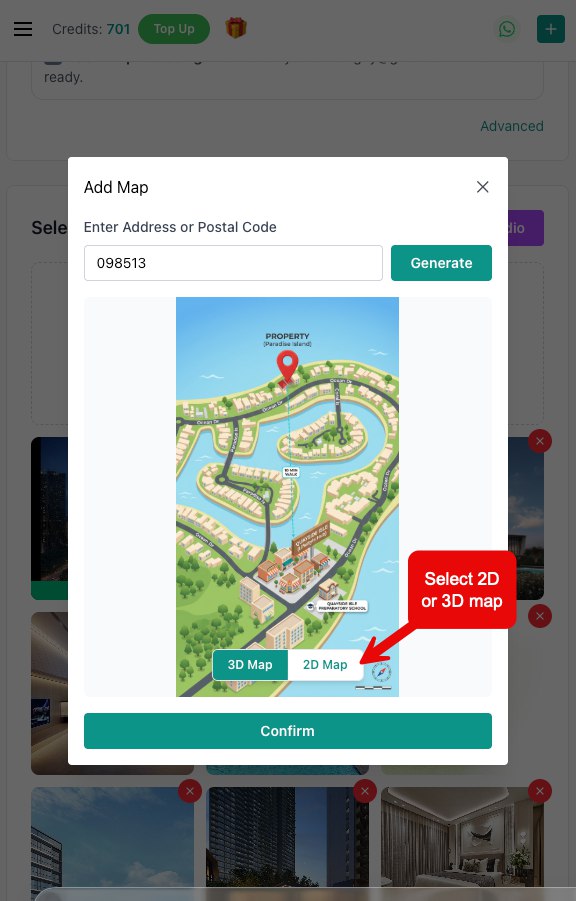
40. Are there specialized tools for property new launches?
Yes! Exclusive to members, you can create new launch projects using e-brochures, PDFs, and existing project videos to generate high-quality marketing content.
Publishing & Posting
41. What platforms can I post to directly from PostAI?
Facebook Page, Facebook Reels, Instagram Profile, YouTube Channel, and TikTok are all currently supported.
42. Can I publish directly to Xiaohongshu?
No. We currently support direct publishing to TikTok, YouTube, Instagram, and Facebook. For Xiaohongshu (RedNote), download the generated video and upload it manually.
43. Can I publish the same video to multiple platforms?
Yes. You can post simultaneously to multiple linked accounts from the publish screen.
44. Can I view all my past posts and history?
Yes. You can access campaign history with filters for draft, published, errors, etc.
45. How do I post my videos to PropertyGuru or 99.co?
First publish your video to YouTube. Then go to the dashboard, copy the YouTube URL, and paste it into the video field on your PropertyGuru or 99.co listing.
Locate Published Video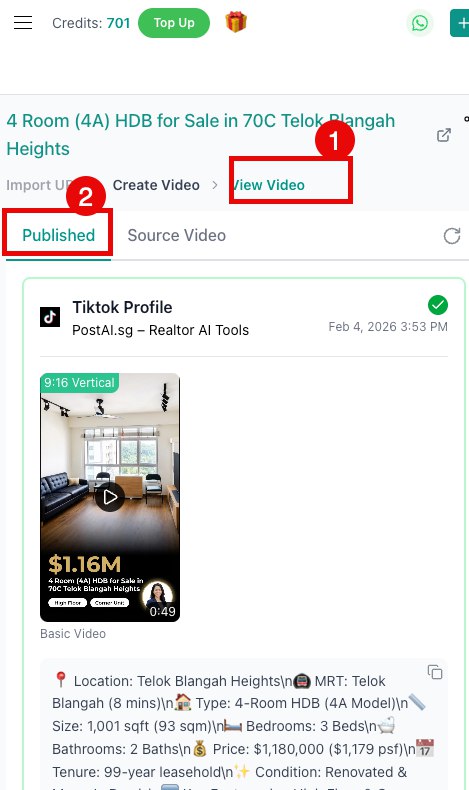
Copy YouTube URL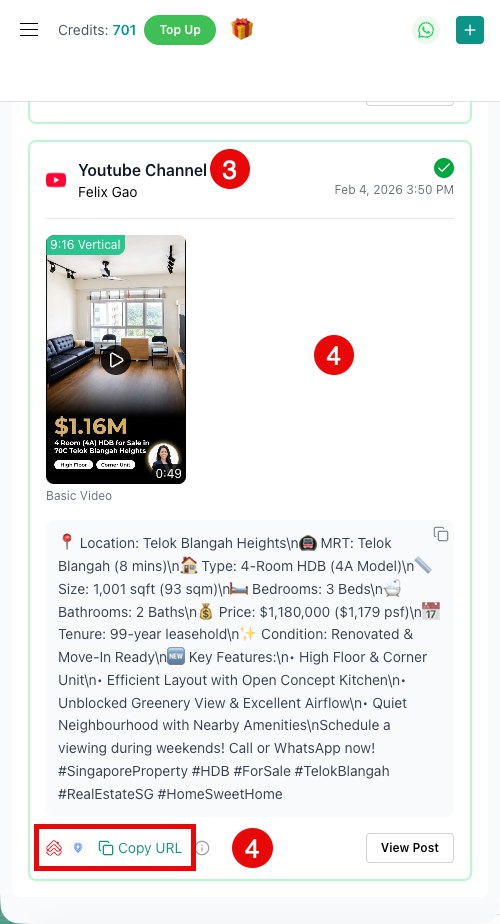
Paste to Portal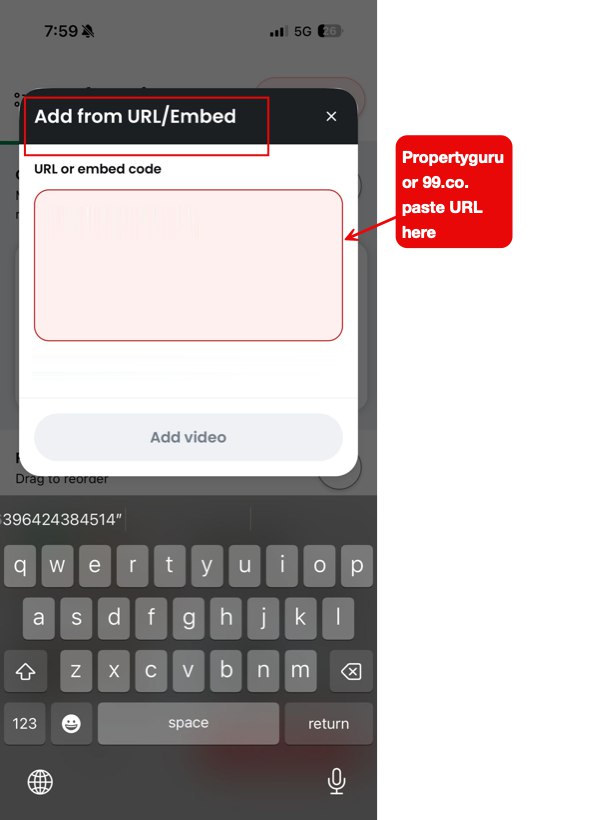
46. Can I repost to Facebook or Instagram groups?
Yes, via share links and Open Graph meta tags, your content can be shared into groups with proper previews.
47. I published my video to TikTok, but why can't I see it on my profile?
All videos posted from PostAI to TikTok are sent for review and saved as a draft. If you see a green checkmark in your PostAI history:
- Open the TikTok mobile app and click on Inbox.
- Look for a notification stating "Your content from PostAI.sg is ready".
- Click the notification and follow the on-screen instructions to publish.
PostAI TikTok Status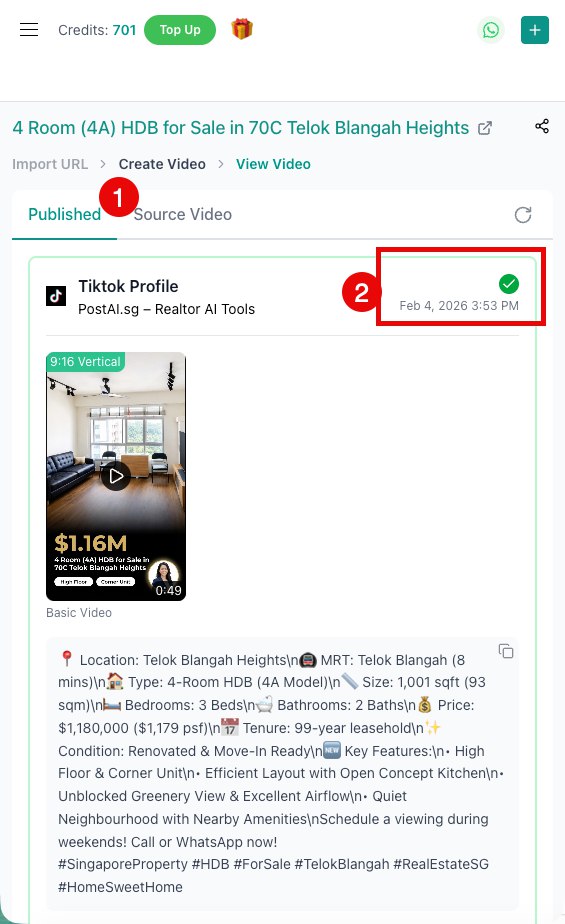
TikTok Inbox Notification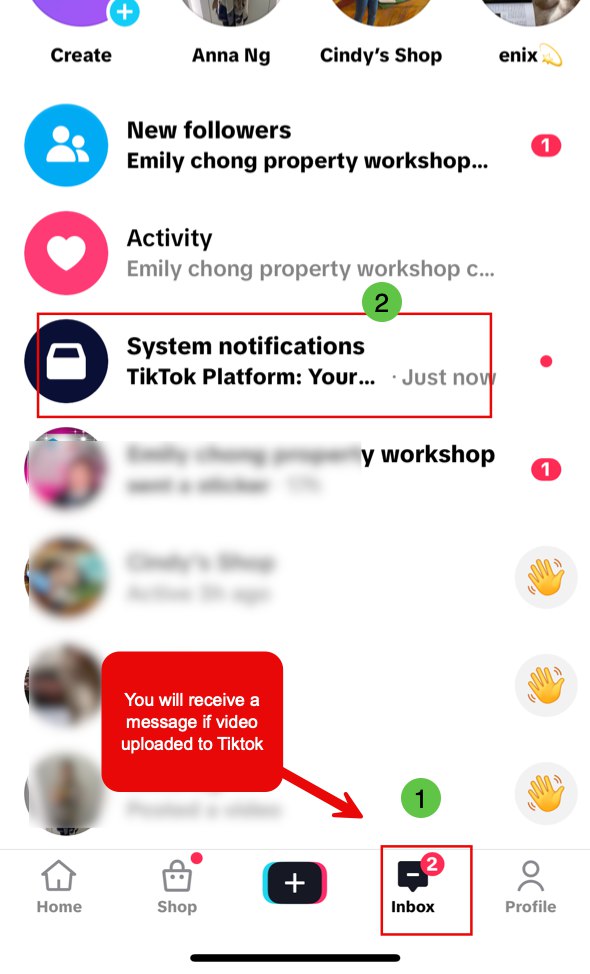
Plans & Pricing
48. What are the 3 packages PostAI offers?
PostAI offers three packages:
- Monthly Plan — recurring monthly subscription with full membership access.
- Annual Plan — recurring annual subscription with full membership access.
- Boost Pack — one-time purchase that includes both membership access and credits, valid for 3 months. Available to anyone, with or without an active plan.
49. What is the difference between a Member and a Non-Member?
Members gain access to the full suite of PostAI advanced creative tools. While Non-Members can perform basic tasks, certain high-value features are reserved for members. See Q34 for the full comparison table.
50. Can I see a side-by-side comparison of Member vs. Non-Member features?
Yes, here is the breakdown:
| PostAI Feature | Non-Member | Member |
|---|---|---|
| Create video via URL | ✓ | ✓ |
| Image to video | ✓ | ✓ |
| Video to video | ✗ | ✓ |
| Xiaohongshu video | ✓ | ✓ |
| Use cloned voice | ✗ | ✓ |
| 3D Map | ✗ | ✓ |
| AI smart sync | ✗ | ✓ |
| New Launch Projects | ✗ | ✓ |
| Talking avatar video | ✗ | ✓ |
| One click to post all | ✓ | ✓ |
| AI image studio | ✓ | ✓ |
51. What additional features do I get with a Membership?
Members get access to all advanced features listed in the comparison table above (see previous question). This includes Video to Video, Voice Cloning, 3D Maps, AI Smart Sync, Talking Avatar Video, and New Launch Projects.
52. What is the cost of generating a video?
The cost depends on the type and branding kit chosen:
Note: Each credit is approximately S$1.50.
| Generation Type | Basic Branding Kit | Avatar Branding Kit (Talking Head) |
|---|---|---|
| Basic Video | 6 Credits | 12 Credits |
| AI Smart Sync | 12 Credits | 18 Credits |
Note: Each credit is approximately S$1.50.
53. What payment methods do you accept?
Credit/debit cards, Google Pay, Apple Pay (via Stripe). PayNow and GrabPay supported for one-time Boost packages.
54. Can I pay annually?
Yes. Annual plans provide more credits and better value.
55. Is there a free trial?
Yes, every new account receives free credits to try the platform.
56. I'm on a Monthly Plan. What happens if I upgrade to Annual?
- Your current Monthly Plan will be automatically cancelled.
- Any remaining credits will have their expiration date extended to match your new plan.
- Your Annual Plan starts from the purchase date.
- There is no pro-rated refund for the unused portion of your Monthly Plan.
57. I'm on a Boost Pack. What happens if I upgrade to Monthly or Annual?
Same as upgrading from Monthly to Annual: your remaining credits' expiration date will be extended to match your new plan, your new subscription starts from the purchase date, and there is no pro-rated refund.
58. Can I downgrade from Annual to Monthly?
No. Downgrades are not supported. Your Annual Plan will remain active until it expires.
59. I cancelled my Monthly Plan. If I resubscribe later, what happens?
- Your new subscription will be at the current price (which may differ from your previous plan).
- Any remaining unused credits will have their expiration date reset to align with your new subscription.
60. I don't have an active plan. Can I just buy a Boost Pack?
Yes. The Boost Pack gives you full membership access and credits for 3 months from the purchase date. It works as a one-time membership with no auto-renewal — anyone can purchase it.
61. I'm on a Monthly or Annual Plan and I purchase a Boost Pack. What happens?
- Your credits will be topped up with the Boost Pack credits.
- If your existing credits were set to expire before the Boost Pack (3 months from purchase), their expiration date will be extended to match the Boost Pack. If your existing credits already expire later, they keep their original date.
- The Boost Pack credits are valid for 3 months from purchase, regardless of your plan cycle.
62. I have a Boost Pack and I purchase another Boost Pack. What happens?
- If you purchase before your current Boost Pack expires: Your remaining credits will be renewed and their expiration extended.
- If you purchase after your current Boost Pack has expired: Any previously expired credits are gone permanently — they will not be restored. Your new Boost Pack starts fresh.
Billing & Cancellation
63. Are there setup or cancellation fees?
No.
64. Will I be charged automatically?
Yes, both monthly and annual plans auto-renew unless cancelled.
65. Why was my credit card automatically charged for another month?
If you are on a monthly subscription, your monthly fee is automatically deducted. To stop future payments, cancel your subscription before the next billing date.
66. If I cancel my membership now, am I still considered a member?
Yes. You will remain a member and continue to enjoy all membership perks until the end of your current billing cycle.
67. Where can I cancel my membership?
Click on your profile at the bottom left. Select "Payment Settings" from the menu. Log in with your email to receive an access code, then manage and cancel your subscription from there.
Payment Settings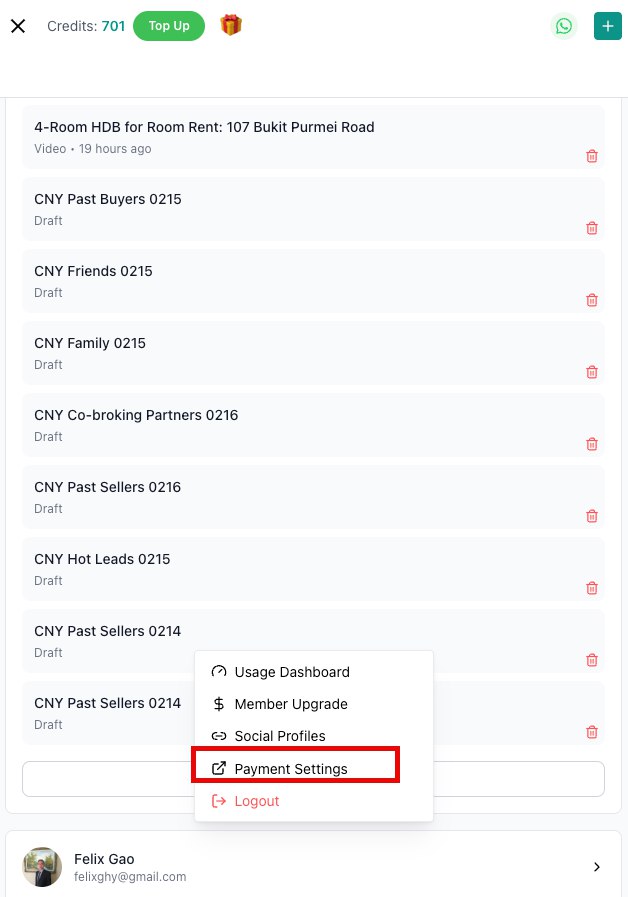
68. Can I pause my membership while I am away on vacation?
No. Memberships cannot be paused. You may cancel and re-subscribe at any time.
69. If I cancelled my membership, can I still create videos?
Yes, you can. However, you will only have access to basic features. Refer to the Member vs Non-Member comparison table (Q34) for details.
70. What happens if my payment fails?
Subscription is paused, but credits remain. Resume anytime.
71. I was just charged for a new month; can I request a refund?
No. We do not offer refunds for membership fees once charged. Cancel your subscription manually to prevent the next deduction.
72. I mistakenly clicked the "Create Video" button but I don't want the video. Can I get a refund?
No. Once a video has been generated, credits are considered spent and will not be refunded. We strongly recommend using the free preview feature before clicking the final create button.
73. Can I get a refund?
No. All purchases are final — there are no refunds or pro-rated credits for cancellations, upgrades, or unused portions of any plan. We strongly recommend using the free preview feature before generating any video.
74. I haven't used any of my credits yet; can I extend my membership?
No. Memberships and credit validity periods are not extendable.
Credits
75. How many credits does each video type cost?
| Video Type | Credits |
|---|---|
| Basic Video | 6 credits |
| Avatar Video | 12 credits (6 base + 6 for avatar) |
| Video to Video | 12 credits |
| Video to Video with Avatar | 18 credits (12 base + 6 for avatar) |
76. Can I preview my video before using credits to generate or post it?
Yes! We strongly advise previewing your video before final generation. Previews are completely free.
77. Do some features cost more credits?
Yes. Basic video creation is included in your plan. Advanced features like Talking Avatar or Data Insights video require extra credits.
78. Do credits expire?
Monthly/Boost credits: 3 months. Annual credits: Valid until end of contract.
79. Can I share credits?
No, credits are non-transferable.
80. If I cancel my membership, can I still use my remaining credits?
Yes. Unused credits remain usable until their expiration date, even after your plan ends. However, you will lose access to membership-only features including: Video to Video, 3D Map, AI Smart Sync, New Launch Projects, Voice Clone, Talking Avatar Video, and the discounted AI Image Studio rate (1 credit/img instead of 2 credits/img).
81. Do expired credits come back if I resubscribe?
No. Once credits have passed their expiration date, they are permanently gone — even if you purchase a new plan or Boost Pack afterwards.
82. I am a Boost Pack user and my credits are expiring soon. How can I carry them over?
Purchase another Boost Pack before your current one expires. Your remaining credits will be carried forward and their expiration extended. Important: if your Boost Pack has already expired, any previously expired credits are gone permanently — they will not be restored even if you purchase a new Boost Pack.
83. Where can I see my membership renewal date, remaining credits, and expiration details?
All credit and membership details are in the Usage Dashboard. Click your profile at the top left, view your current plan and next renewal date, and scroll through the table to see credit history and expiration dates.
Access Credits Details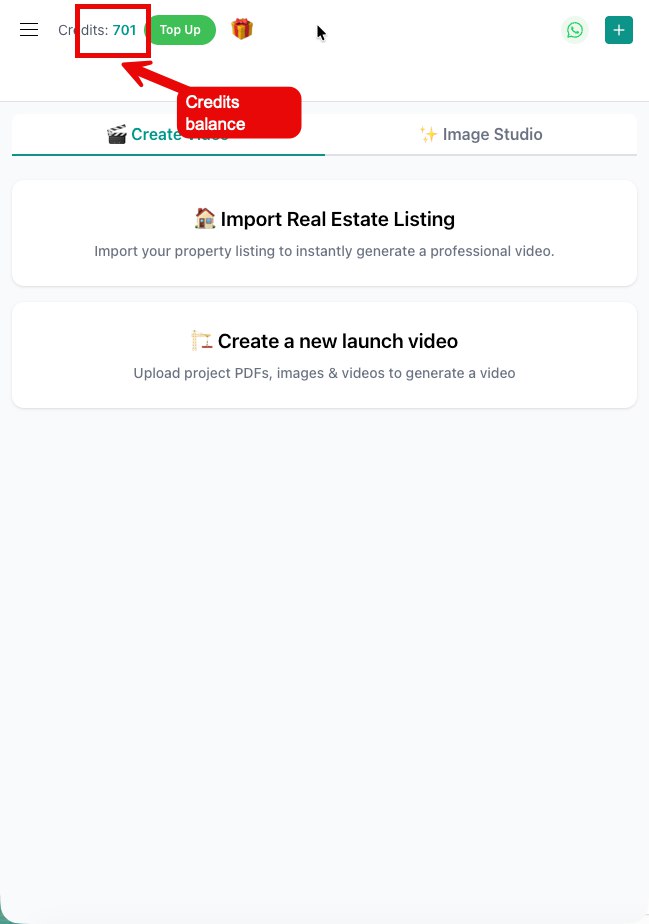
Usage Dashboard Details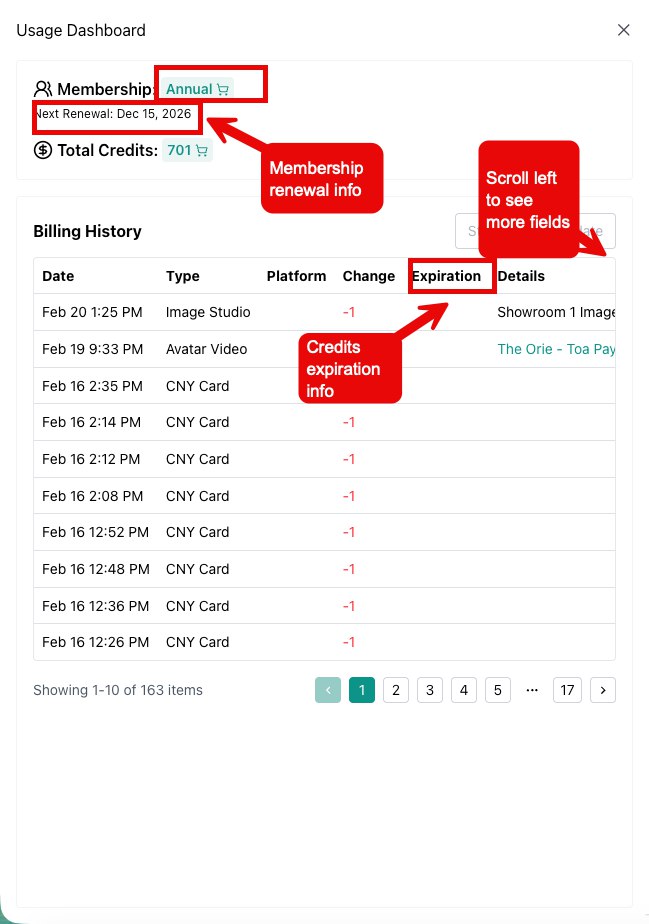
Referrals
84. How do I refer my friends to PostAI?
You can find your unique invitation link and QR code by clicking the referral icon at the top of the screen.
Access Referral Link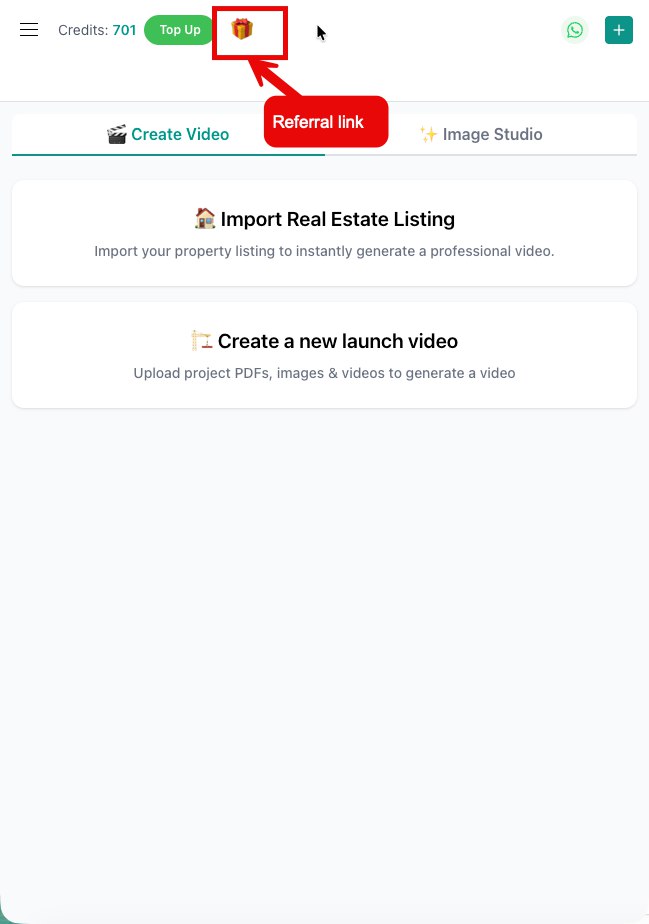
85. Referral Program?
Invite friends via link. Both get 6 free credits when the friend makes a payment or generates their first video.
86. How many bonus credits can I get for referring friends?
If you are a paid member, both you and your referred friend will receive bonus credits once they subscribe. We also run special promotions where you can earn additional credits per referral.
87. When will I receive my referral credits?
Referral credits are awarded only after your referred user successfully subscribes to a paid plan.
88. Where can I find my referral link and tracking details?
Click on the referral icon at the top of the page to open the referral portal. Here you can copy your referral link, download your QR code, and view your complete referral history.
Referral Portal Details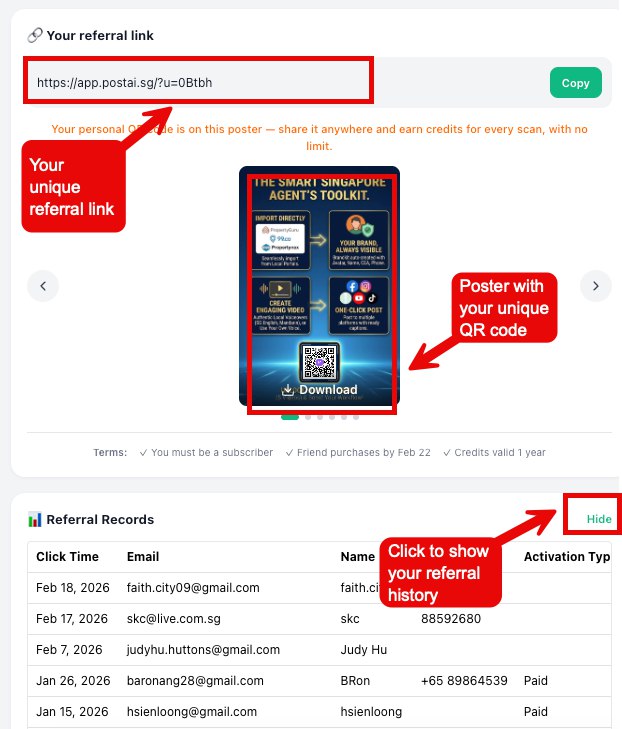
Troubleshooting: Facebook & Instagram
89. I can't connect my Facebook account to PostAI. How do I check if it's a Facebook Page?
PostAI can only connect to Facebook Pages — not personal profiles or Professional Profiles. Meta has been converting some Pages to "Professional Profiles," which look similar but cannot connect to third-party apps like PostAI.
How to check what type you have:
Key differences:
If you're unsure, visit Page Access settings. If this page loads and shows access controls, you have a Facebook Page. If it doesn't load or redirects, you likely have a Professional Profile.
How to check what type you have:
- On Facebook, click your avatar in the top right → "See all profiles".
- If you see your account listed as a Page, you're good.
- If it says "Professional Profile", it cannot connect to PostAI. You would need to convert it back to a Page or create a new Facebook Page.
Key differences:
- Facebook Page: Has "Page Access" settings, can connect to third-party apps like PostAI, supports Business Integrations.
- Professional Profile: Looks like a Page but uses profile-based settings, cannot be connected via API.
- Personal Profile: Your personal Facebook account — cannot be connected to PostAI.
If you're unsure, visit Page Access settings. If this page loads and shows access controls, you have a Facebook Page. If it doesn't load or redirects, you likely have a Professional Profile.
Page vs Professional Profile — only Pages can connect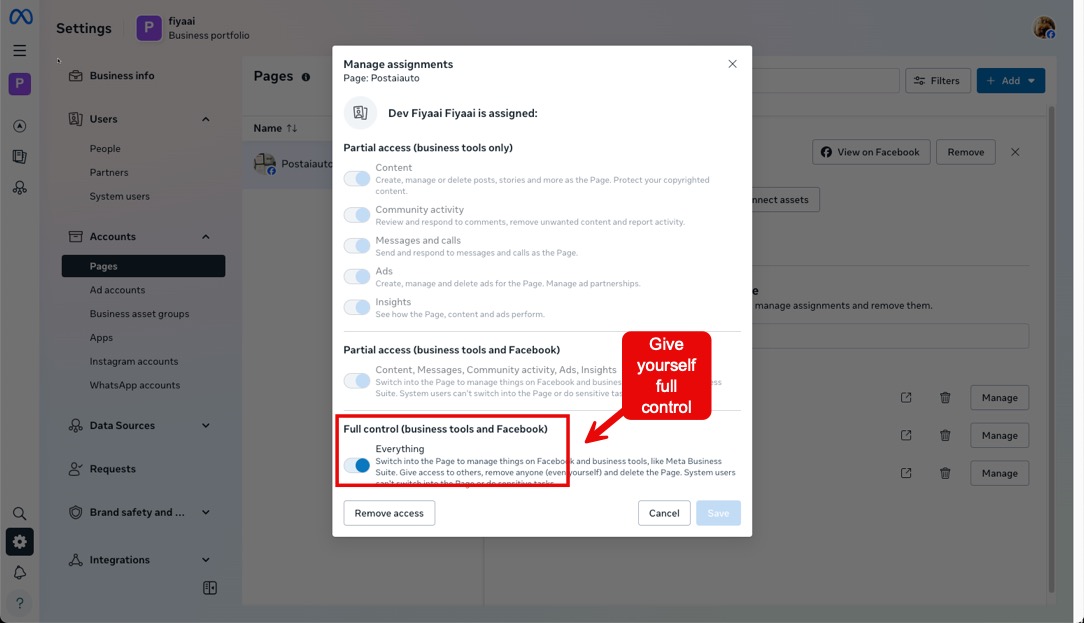
90. Why can I see the Facebook Page first, but can't connect it?
Facebook has two permission layers: Personal access and Business ownership. If a Business Portfolio owns the Page, you need Business Admin "Full Control."
Fix Step 1: Open business.facebook.com/settings
Fix Step 2: Users → People. Verify "Access: Full control."
Fix Step 3: Accounts → Pages → Select the Page. Assign PostAI access.
Fix Step 4: Go back to PostAI, click Reconnect Facebook, and select the Business (not personal).
Permission Layers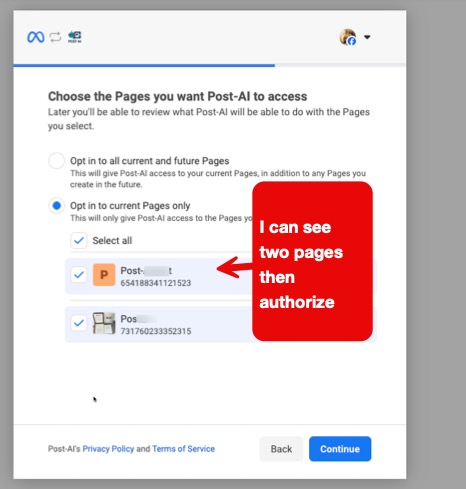
Fix Step 1: Open business.facebook.com/settings
Fix Step 2: Users → People. Verify "Access: Full control."
Fix Step 3: Accounts → Pages → Select the Page. Assign PostAI access.
Fix Step 4: Go back to PostAI, click Reconnect Facebook, and select the Business (not personal).
Reconnect Facebook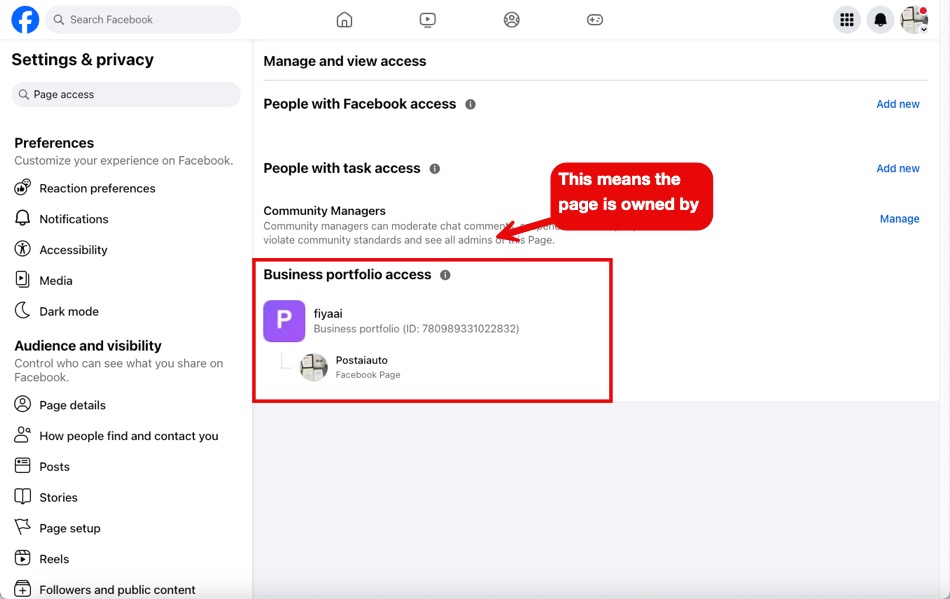
91. I connected Facebook successfully, but my Page doesn't appear in PostAI
This usually means PostAI was not granted permission to access that specific Page during the Facebook login flow. Facebook shows a "Choose what you allow" screen — if any Pages were unchecked, PostAI cannot see them.
Fix — Re-grant Page permissions:
Step 1: On your computer, go to Facebook → Settings & Privacy → Settings → Business Integrations.
Still not working? Try the nuclear option: In Facebook Business Integrations, click Remove next to PostAI to fully disconnect it. Then go back to PostAI and reconnect from scratch. When the Facebook popup appears, make sure to accept ALL permissions and select ALL Pages.
Fix — Re-grant Page permissions:
Step 1: On your computer, go to Facebook → Settings & Privacy → Settings → Business Integrations.
Step 1 — Open Business Integrations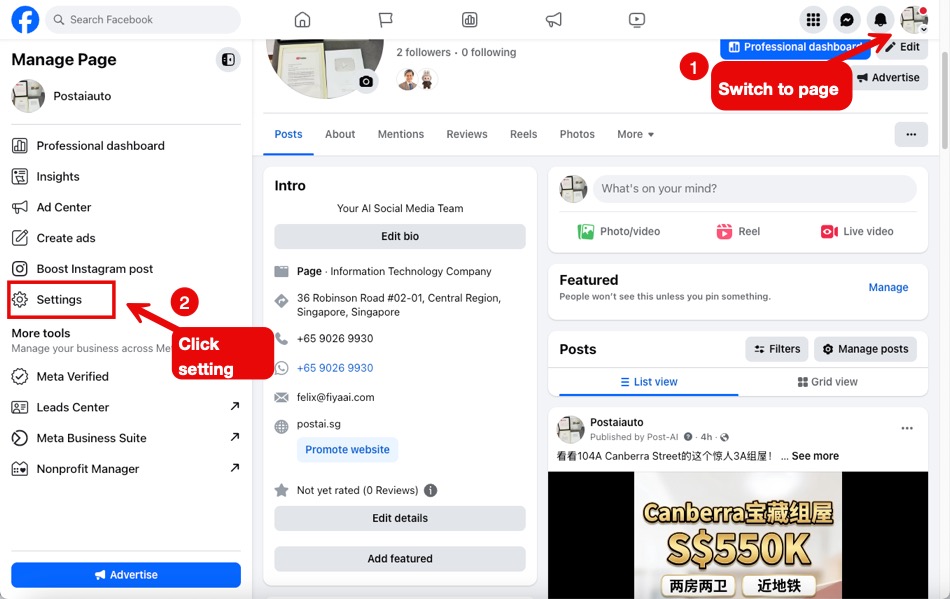
Step 2: Find PostAI in the list and click "View and Edit".Step 2 — Find PostAI, click View and Edit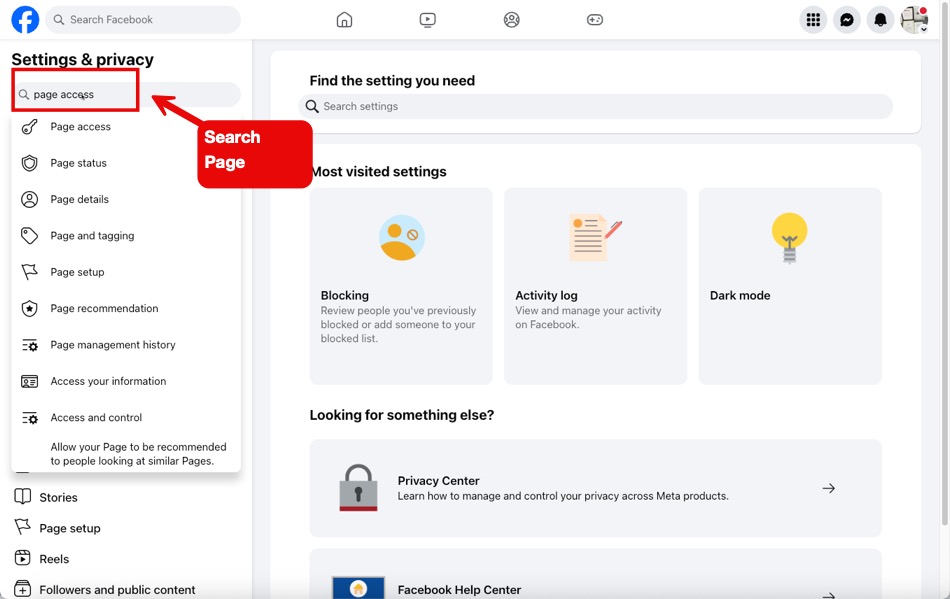
Step 3: Scroll down to the Pages list. Click "See all pages" and make sure ALL boxes are checked — even Pages you don't plan to use with PostAI. Then click Save.Step 3 — Check all Pages and Save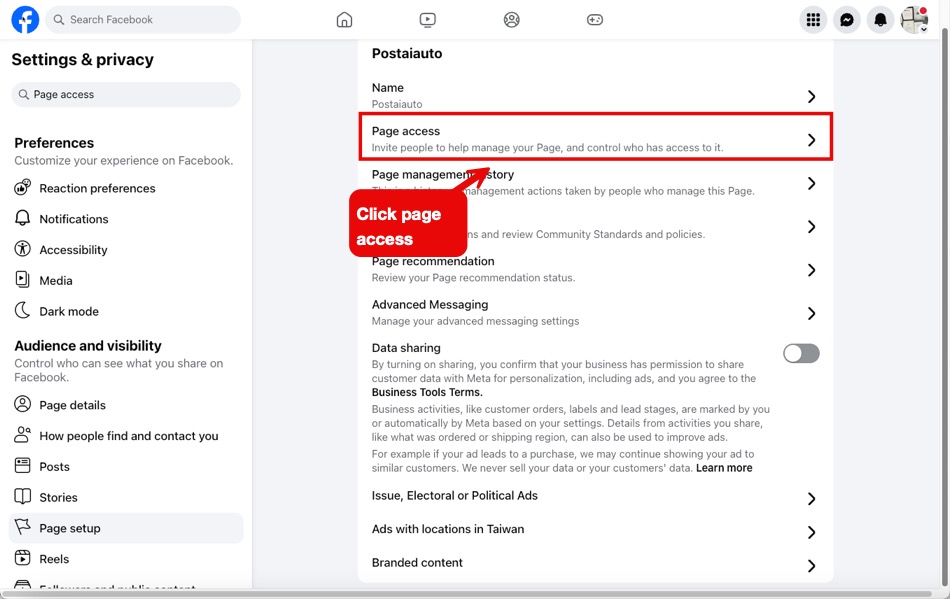
Step 4: Go back to PostAI and click Reconnect Facebook. Your Pages should now appear.Still not working? Try the nuclear option: In Facebook Business Integrations, click Remove next to PostAI to fully disconnect it. Then go back to PostAI and reconnect from scratch. When the Facebook popup appears, make sure to accept ALL permissions and select ALL Pages.
Reconnect Facebook in PostAI
92. Some Facebook Pages show up but a specific Page is missing
If other Pages appear in PostAI but one specific Page does not, check these two things:
Check 1 — Do you have Admin / Full Control on that Page?
After fixing permissions, go to Facebook → Business Integrations → PostAI → View and Edit → check all Pages → Save. Then reconnect in PostAI.
Check 1 — Do you have Admin / Full Control on that Page?
- Go to Facebook → click your avatar → "See all profiles" → switch to the missing Page.
- Visit Page Access settings and click your name.
- It must say "This person has full control". If it doesn't, someone else on your team needs to grant you Admin access.
Check your Page Access — must show Full Control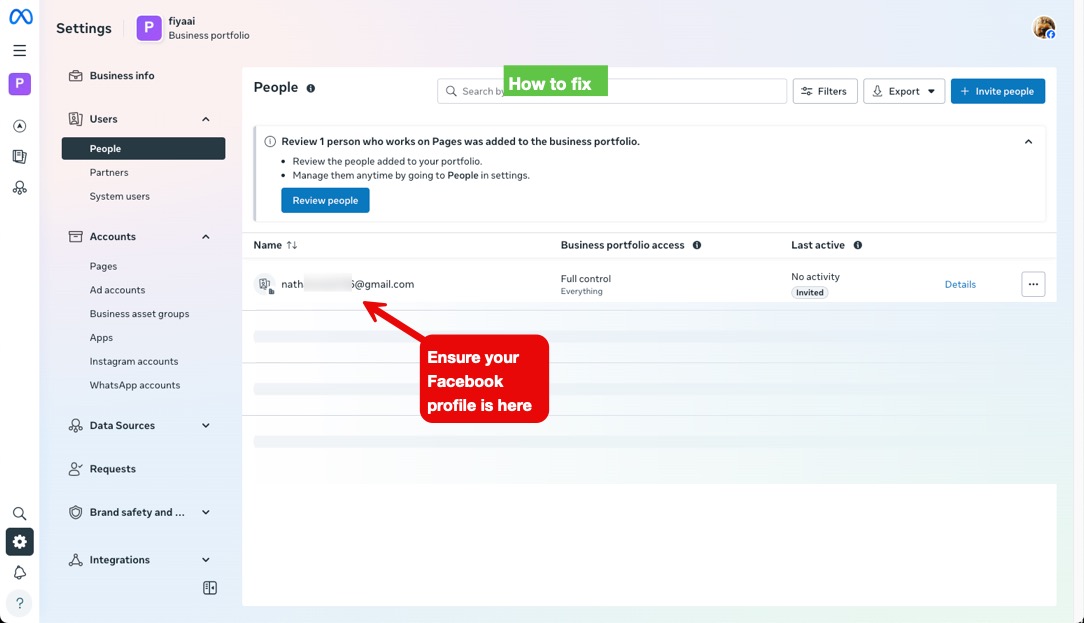
Check 2 — Is the Page inside a Meta Business Portfolio?- On the same Page Access settings page, check if a Business Portfolio is listed.
- If yes, go to Meta Business Suite → Settings.
- Under Users → People: your name must show "Full control: Everything".
- Under Accounts → Pages: select the missing Page — your name must also show "Full control: Everything" there.
Business Portfolio — check Full Control at both levels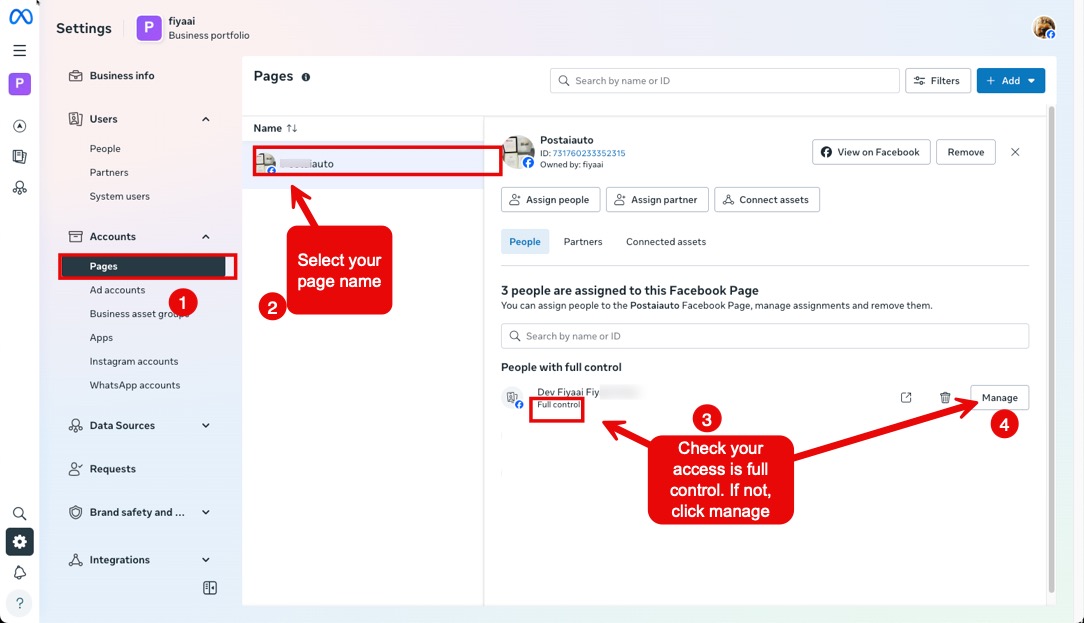
You need Full Control at both the Business Portfolio level AND the individual Page level. If you don't have access, ask your team's Business Portfolio admin to grant it via these steps.After fixing permissions, go to Facebook → Business Integrations → PostAI → View and Edit → check all Pages → Save. Then reconnect in PostAI.
93. I created a new Facebook Page but it doesn't appear in PostAI
When you create a new Facebook Page after connecting PostAI, the new Page is not automatically granted to PostAI — you need to re-authorize.
Step 1 — Confirm it's a real Facebook Page (not a Professional Profile):
Meta has been converting some Pages to "Professional Profiles" which look similar but have different API access. PostAI can only connect to Facebook Pages, not Professional Profiles. Check what type you have here.
Step 1 — Confirm it's a real Facebook Page (not a Professional Profile):
Meta has been converting some Pages to "Professional Profiles" which look similar but have different API access. PostAI can only connect to Facebook Pages, not Professional Profiles. Check what type you have here.
Page vs Professional Profile — only Pages can connect
Step 2 — Grant the new Page to PostAI:- Go to Facebook → Settings → Business Integrations.
- Find PostAI → click View and Edit.
- Click "See all pages" — your new Page should appear here. Check its box and click Save.
- In Business Integrations, click Remove next to PostAI.
- Go back to PostAI and reconnect Facebook from scratch.
- When the Facebook authorization popup appears, make sure to select ALL Pages (including the new one) and accept all permissions.
Accept all permissions during reconnection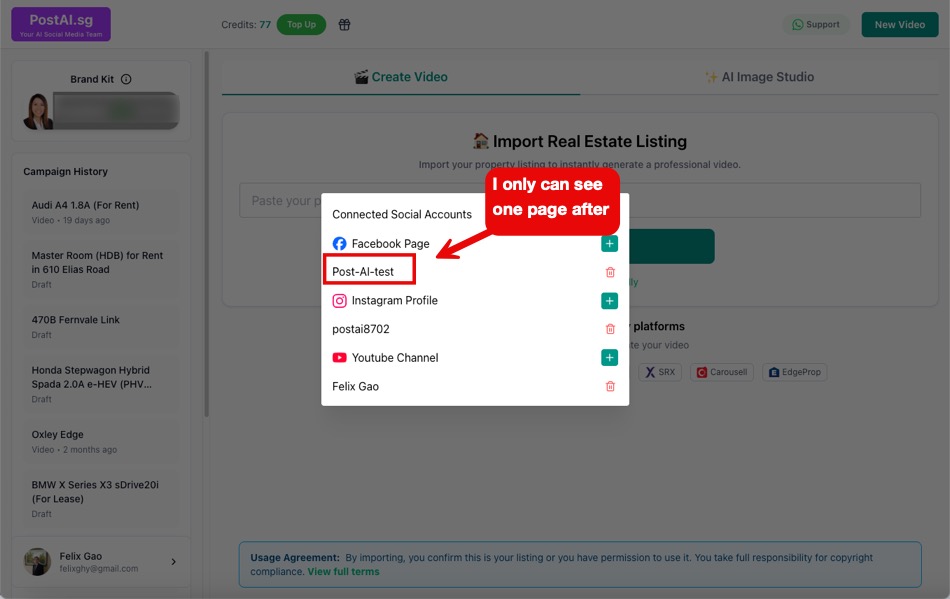
94. Instagram "Network Timeout" error?
If posting fails with a timeout:
- Disconnect and reconnect Instagram in PostAI.
- Log out of Instagram on both mobile and browser.
- Reconnect in PostAI to force a fresh authorization.
IG Timeout Fix
95. OAuthException: Future activity off?
Fix: Visit Instagram Account Center → Info and Permissions → Future Activity. Turn on "Connect future activity."
Future Activity Settings
96. Can't connect Instagram / Redirect failed?
Meta has a known issue when connecting Instagram via Facebook login.
Fix: Log in using your Instagram username and password directly. Do NOT use "Log in with Facebook."
Fix: Log in using your Instagram username and password directly. Do NOT use "Log in with Facebook."
IG Login Method
97. Not all my Facebook Pages appear in the authorization popup when connecting PostAI
This is a known Facebook bug. When the Facebook "Choose the Pages you want Post-AI Authorise to access" popup appears, the page list may be cut off — for example, you might see only 4 Pages when you actually have 5.
Why this happens:
Facebook's authorization popup has a fixed-height container for the Pages list. If you have more Pages than the container can display, the extra Pages are hidden with no scroll bar.
Workaround:
Important: This is a Facebook platform bug — PostAI cannot control or fix the authorization popup. If you've already completed the connection without selecting all Pages, go to Facebook → Business Integrations → PostAI → View and Edit → check all Pages → Save, then reconnect in PostAI.
Why this happens:
Facebook's authorization popup has a fixed-height container for the Pages list. If you have more Pages than the container can display, the extra Pages are hidden with no scroll bar.
Workaround:
- Before selecting your Pages, resize your browser window — make it taller or use your browser's zoom-out function (Ctrl/Cmd + minus).
- This forces Facebook to recalculate the list height, revealing all your Pages.
- Once all Pages are visible, select the ones you want and click Continue.
Important: This is a Facebook platform bug — PostAI cannot control or fix the authorization popup. If you've already completed the connection without selecting all Pages, go to Facebook → Business Integrations → PostAI → View and Edit → check all Pages → Save, then reconnect in PostAI.